Azure Spring Clean: Azure Identity Management: Azure AD, Hybrid and Azure AD DS — March 22, 2021

Azure Spring Clean: Azure Identity Management: Azure AD, Hybrid and Azure AD DS

Salaam, Namaste, Ola and Hello!

Welcome to the #AzureSpringClean 2021! It is my pleasure to be opening up this event and taking part in it for the 2nd year running! This is an amazing community initiative dedicating to promoting well managed Azure tenants. You can catch all the updates from https://www.azurespringclean.com/

The following post is in relation to Identity management in cloud, specifically Microsoft. In my experience there are three main services with Azure Identity Management:

  • Azure Active Directory (Azure AD)
  • Hybrid AD
  • Azure Active Directory Domain Services (Azure AD DS)

I will discuss how each works, in what scenarios you can make best use of them and finally some pros and cons for each one.

Azure Active Directory

Azure Active Directory is Microsoft’s cloud-based identity management service which integrates with Exchange Online, SharePoint Online and Microsoft Teams to name a few of the services. Like most Azure Cloud services, Azure Active Directory (or Azure AD for short) has different levels of features, all dependent on the subscription you assign the user. The four main levels are:

  • Azure Active Directory free
  • Azure Active Directory Premium P1
  • Azure Active Directory Premium P2
  • Pay as you go feature licenses

Azure Active Directory free provides user and group management, self-service password change for cloud users and SSO capabilities in Azure, Office 365 and certain 3rd party SaaS apps. You can also have integration with on-premises Active Directory but this will be discussed further in the Hybrid section

Azure Active Directory Premium P1 has all the same features and capabilities as the free version but has more support with hybrid users, advanced administration including dynamic groups and cloud password write back capabilities.

Azure Active Directory Premium P2 has all the same features and capabilities as Premium P1 but also, P2 offers Active Directory Identity Protection to help provide risk based conditional access to your applications and critical company data.

Pay as you go feature license: These are additional feature licenses, such as Active Directory Business-to-Customer (B2C). B2C can help provide identity and access management solutions for your customer-facing applications

Azure AD can be used in a few different scenarios, for example: If your Infrastructure is fully Microsoft 365 and you are using Azure AD to manage user accounts and groups, Exchange Online for email, SharePoint online for Document management, Teams for collaboration and telephony and Intune to manage Windows 10 device and security. Another scenario you can use Azure AD is in a Hybrid environment, where you need to Synchronize Active Directory on-premises users and groups with Microsoft 365. This will be discussed further in the Hybrid Section

Pros of Azure AD include:

  • Centralized administration of users through different locations
  • Comprehensive Organizational Unit management via a single interface
  • Microsoft Integrated Security

Cons of Azure AD include:

  • No integration with on premises applications unless they support SAML or requires further configuration and resources (Hybrid)
  • Has a massive reliance on Microsoft 365 so any outage can cause a lot of issues

Below is a two part video series I did on Azure Ad with a demo look around the portal!

Azure Hybrid Identity

Azure Hybrid identity requires both Azure AD and Active Directory on-premises. To achieve Hybrid Identity with Azure AD, one of three authentication methods can be used:

  • Password hash Synchronization (PHS)
  • Pass-through authentication (PTA)
  • Federated (AD FS)

These authentication methods also provide single-sign on (SSO) capabilities which allows to automatically sign in to apps on corporate devices which are connected to your corporate network

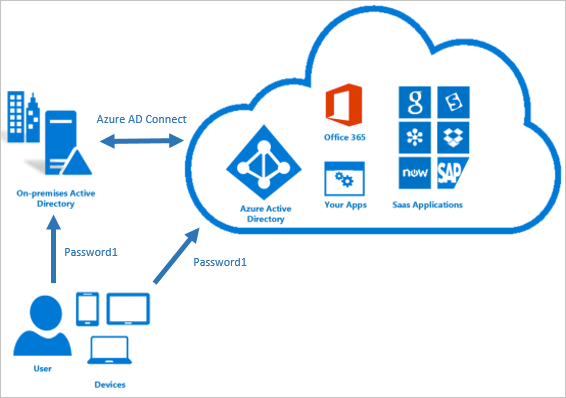
Password Hash Synchronization can be configured (as with all three methods) using Azure AD connect utility. Azure AD connect synchronizes a hash, of the hash, of a users password from an on-premises Active Directory instance to a cloud-based Azure AD instance.
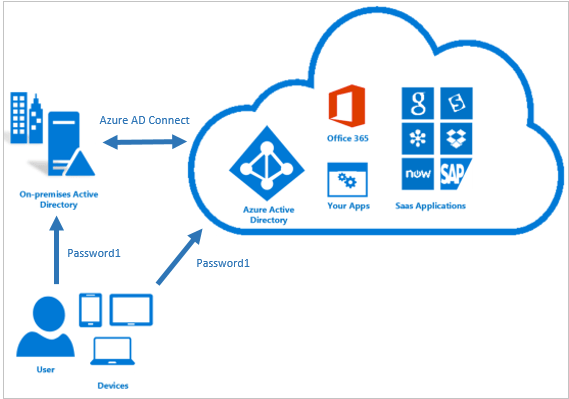
Active Directory on premises stores password in the form of a hash value representation, of the actual user password. To Synchronize your password, Azure AD connect sync extracts your password hash from the on-premises Active Directory instance. Extra security processing is applied to the password hash before it is synchronized to the Azure Active Directory authentication service. Passwords are synchronized on a per-user basis and in chronological order.

Pass-through authentication allows users to sign in to both on-premises and cloud-based applications using the same password. This feature is an alternative to Password Hash Synchronization , which provide the same benefit of cloud authentication. You can combine pass-through authentication with Single-sign on features so when users are accessing applications on their corporate machines inside the network they do not need to type in their passwords.

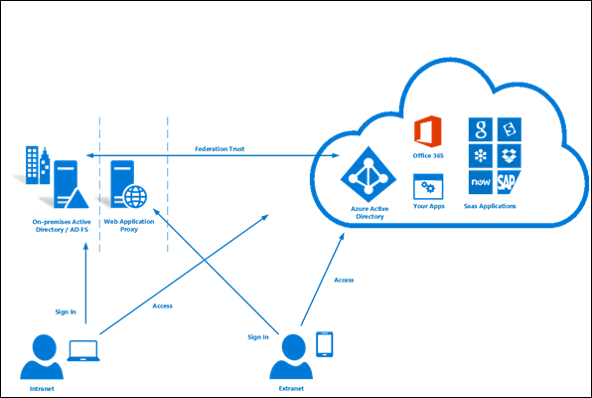
Federated (AD FS) is a collection of domains that have established a trust. The level of trust may vary however, but typically includes authentication and almost always includes authorization. You can federate your on-premises environment with azure AD and use this federation for authentication and authorization. This sign-in method ensures that all users authentication occurs on-premises. This method allows administrators to implement more rigorous levels of access control. There is much more to Federation but that is out of the scope of this blog post!

These three different methods of Hybrid authentication all have various scenarios which they support. Password Hash Synchronization is ideal for if you have an on-premises Infrastructure but have recently started your journey into Microsoft 365 with a few services like Exchange Online and SharePoint Online. Password Hash Synchronization will allow users to have a single password and also have single-sign on when on the corporate network.

Pass-through authentication is ideal for businesses wanting to enforce their on-premises Active Directory security and password policies into the Cloud identity.

Active Directory Federation can provide additional advanced authentication required for smart-card based authentication or third-party MFA.

Password Hash Pros:

  • Cloud scale/resilience since this all native Azure AD with no other reliance during authentication
  • Provides breach replay protection and reports of leaked credentials since the stored hash can be used t compare against credentials found on the dark web

Password Hash Cons:

  • If the Active Directory Account has been locked, restricted hours set or password expired it will not impact the ability to logon via azure AD

Pass-through authentication (PTA) Pros:

  • This is lighter than using federation and establishes an inbound 443 connection to Azure AD not requirement any inbound port exceptions
  • Any Active Directory account restrictions like hours, account lockout, password expired would be enforced

Pass-through authentication (PTA) Cons:

  • Legacy authentication (Pre 2013 Office clients) may not work with PTA

Federation Pros:

  • Supports 3rd party MFA and custom policies/claims rules
  • Certification based authentication

Federation Cons:

  • Large amount of Infrastructure required
  • Firewall exceptions needed with the ADFS Proxy
  • Can limit scale/availability

You can find a two part video series below where I cover Hybrid AD including a demo of Azure AD connect below:

Azure Active Directory Domain Services

Azure Active Directory Domain Services (Azure AD DS for short) provides managed domain services such as:

  • Domain Join
  • Group Policy
  • Lightweight directory access Protocol (LDAP)
  • Kerboros/NTLM authentication

You use these domain services without the need to headaches of having to manage, deploy and patch a domain controller in the cloud. Azure AD DS integrates with your existing AD tenant which makes it possible for users to sign in using their existing credentials. You can also use existing groups, and users accounts to secure access to resources which provides a smoother ‘lift-and-shift’ of on-premises resources to Azure.

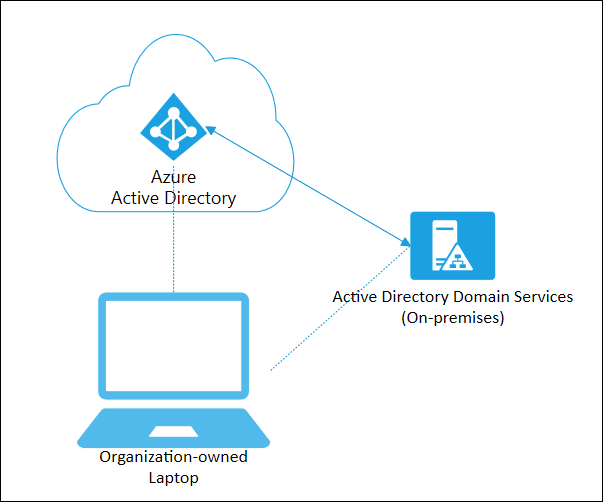
Azure AD DS replicates identity information from Azure AD, so works with Azure AD tenants that are cloud-only, or synchronized with an on-premises Active Directory Domain Services (AD DS) environment. The same set of Azure AD DS features exist for both environments.

Azure AD DS offers alternatives to the need to create a VPN connection back to an on-premises AD DS environment or run and manage VMs in Azure to provide identity services. The following feature of Azure AD DS simplify deployment and management operations:

  • Simplified Deployment experience: Azure AD DS is enabled for your Azure AD tenant using a single wizard
  • Integrated with Azure AD: User accounts, group membership and credentials are automatically available from your Azure AD tenant.
  • NTLM and Kerboros Authentication: With support for NTLM and Kerboros authentication, you can deploy applications that rely on Windows-integrated authentication

Much like Azure AD, Azure AD DS can be used in a Hybrid environment to include integration with on-premises applications. Below is a video that goes into much more detail along with demo on Azure AD Domain Services!

I hope you enjoyed this blog! Keep an eye out on Twitter for #AzureSpringClean and stay tuned for much more amazing content this month!
Azure Back to School: Hybrid Identity, Hybrid Device and Hybrid Exchange — September 7, 2020

Azure Back to School: Hybrid Identity, Hybrid Device and Hybrid Exchange

Salaam, Namaste, Ola and Hello!

Welcome to the 7th September instalment of the ‘Azure Back to school’ month. This is another great initiative setup by Dwayne Natwick (@DwayneNcloud) to share various topics with the community on all things Azure. My blog for this is around Azure Hybrid Identity, Hybrid Device and Hybrid Exchange. You can follow the whole month using the #AzureBacktoSchool on twitter and also on the following link: https://azurebacktoschool.tech

I have done a lot of projects in the last 12 months for customers where they are starting there cloud journey, and rather than going ‘all or nothing’, they are taking a hybrid approach and using on-premises services along side cloud services.

In this blog I am going to go discuss Azure Hybrid options available from a SaaS (Software as a Service) perspective and how best to configure them. The three main areas I touch on will be:

  • Hybrid Identity (Azure AD and Active Directory on-premises)
  • Hybrid Device (Intune and Group Policy)
  • Hybrid Exchange (Exchange Online and Exchange on-premises)

Hybrid Identity: Hybrid Identity is where the user objects are stored and managed in Active Directory on-premises and synchronised to Azure AD. To achieve hybrid identity with Azure AD, one of three authentication methods can be used, depending on your scenarios. The three methods are:

  • Password Hash Synchronisation
  • Pass-through Authentication
  • Federation

All three methods are configured using Azure AD Connect tool which is traditionally installed on a domain controller within the on-premises Infrastructure. Password Hash Synchronisation is an extension to the directory synchronisation feature implemented by Azure AD Connect sync. You can use this feature to sign in to Azure AD services like Office 365.

Azure Active Directory Pass through Authentication provides the same benefit to Password Hash Synchronisation, however you would use pass through authentication if you want to enforce your Active Directory on-premises (Group Policy) password policy onto your users. There are some key benefits to using pass through authentication:

  • Great user experience
  • Easy to deploy and administer for the IT team
  • Secure as no passwords are stored in the cloud, only on-premises
  • Can be highly available by installing multiple agents on premises

Federation is where two or more domains have established trust between them. The level of trust can vary but typically includes authentication and authorisation.

You can federate your on-premises environment with Azure AD and use this federation for authentication and authorisation. This sign-in method ensures that all user authentication occurs on-premises. This method allows administrators to implement more rigorous levels of access control. As you can see, all three methods share a common theme, which is that the identity details and authentication process is controlled by the on-premises part of the hybrid setup

Hybrid Device: I have found recently that a lot of businesses want to start their journey into the cloud by utilising the MDM service available in Azure, which is Intune. The main issue with this has been that traditionally Group Policy is embedded for a lot of businesses and they use this to ensure all corporate Windows based machines follow the same security guidelines.

Since Intune has come into the picture as a Cloud MDM platform, it has slowly started to develop features that are also available in Group policy, but unfortunately no where enough for Intune to replace it. This is where having Hybrid device management allows you to have the best of both worlds. You can continue to manage devices with Group policy but also take advantage of some of the great features in Intune.

This specific feature is known as ‘Hybrid Azure AD Join’. User Azure AD Hybrid joined devices if:

  • You have Win32 apps deployed to these devices that rely on Active Directory machine authentication
  • You want to continue to use Group Policy to manage device configuration
  • You want to continue to use existing imaging solutions to deploy and configure devices.
  • You must support down-level Windows 7 and 8.1 devices in addition to Windows 10

When setting up your Infrastructure for Hybrid Azure AD join you need to ensure you have configured Azure AD connect for Hybrid devices as well as configuring Group policies to add specific URLs to Intranet Zone assignments and a Group policy to enable automatic enrolment. You then need to ensure that the machines you wish to be Hybrid Azure AD Joined reside in the Organisational Unit you link the various Group policies to. For a full list of prerequisites, have a read of this link: https://docs.microsoft.com/en-us/azure/active-directory/devices/hybrid-azuread-join-plan

Hybrid Exchange: In its standard default configuration there is no link between Exchange on premises and Exchange online. You cannot have mailboxes in both platforms using the same domain without some sort of Hybrid configuration.

A hybrid deployment enables the following features:

  • Secure mail routing between on-premises and Exchange Online organisations.
  • A unified global address list (GAL), also called a “shared address book.”
  • A single Outlook on the web URL for both the on-premises and Exchange Online organisations.
  • Mail routing with a shared domain namespace. For example, both on-premises and Exchange Online organisations use the @yourdomain.com SMTP domain.
  • Centralised mailbox management using the on-premises Exchange admin centre.

Some companies implement Exchange Hybrid when they are planning on migrating to Exchange Online from on premises Exchange via either a staged or cut-over migration method. A hybrid deployment involves several different services and components:

  • Exchange Servers
  • Office 365 subscription that includes Exchange online
  • Hybrid Exchange configuration wizard installed on-premises
  • Azure AD Authentication
  • Azure AD connect Synchronisation

A common mistake made when implementing Hybrid Exchange for migration purposes is that once the migration is completed you should decommission Exchange on premises. The reason this is a mistake is due to the fact that within this implementation you will have configured Azure AD synchronisation between Active Directory on premises and Azure AD, where the user objects stored in Active Directory are synchronised to the cloud.

In an on premises Exchange environment, Active Directory objects get a lot of information from Exchange servers, and in turn with the AD synchronisation process this is then sent to the identity objects in the cloud. If you decommission all your Exchange servers on premises, this automatically removes all Exchange attributes from the Active Directory account, which in turn will synchronise with Azure AD accounts which will have a massive impact on your email service. Therefore Microsoft recommend you should have at least one Exchange Server that stays on premises in a Hybrid setup.

Big thank you to everyone contributing this month and another big thanks to Dwayne for all his hard work putting this together.

Hope you find this helpful, if you would like any more information feel free to tweet me @shabazdarr or ask a question in the comments section below! Until next time, ‘IamITGeek’ over and out!

Azure Active Directory Migration – Part 2 — March 17, 2019

Azure Active Directory Migration – Part 2

Salaam, Namaste, Ola and Hello!

Welcome citizen to the ‘I am IT Geek’ blog!  This is part 2 of my experience with Azure Active Directory Migration a few years ago.

In part one I set the scene and explained how we ended up with Azure AD as the solution to meet this customers requirements, but all this was still theory.  Due to this technology being relativity new at the time, the customer wanted a Proof of Concept (POC) setting up and then to test with live users.  The main purpose of this was to enable us to document the migration process but at the same time iron out any potential issues before the mass migration to over 300 users.

Before POC could take place I needed to ensure the back-end Azure and Intune was setup correctly.  With this particular customer, as they already used Office 365, SharePoint online and Sky for Business, the Azure Active Directory was already setup and working.  The Intune setup was simple enough: Enable Intune via Azure AD, Create a Security Group for the Intune policy and assign the relevant users to this group and finally configure the Intune Policy.

Currently the Intune policy options are what I would call ‘Basic’ as you only really have a handful of security like settings (password length, Password type, password lockout etc).  At the time of writing this Intune is very much in it’s infancy but knowing Microsoft it will be a service that will develop very quickly.

With the basics of the policy completed there was some final testing to complete around profile migration, which ended up being the trickiest part.  The main reason for this being a requirement was that when you add a Windows 10 device to the Azure Domain it creates a new blank profile, much like it would if you were to add the any on premises domain.  In the end we found a great tool called ‘ForensiT User Profile Wizard’ which basically migrated the old local profile into the new Azure AD profile.  The slight caveat to this was that it did not migrate Google password store as this is encrypted, but logging into Google with the users gmail account got round this issue.

The POC was a massive success with the group of test users being migrated seamlessly and once migrated saw no difference in there daily work which was a massive positive.  In a way that is always a massive aim with any type of migration…make the impact to users as little as possible!

Due to the size of the migration being so wide (offices all over the world), my scope was to roll out Azure AD to the UK based users and provide documentation to allow the Global Infrastructure team to slowly migrate the global users onto the platform.  The main migration was a massive success which was all down to the careful planning, testing and documentation done in the build up.

Since the migration I have worked with the customer to implement Single sign on for 3rd party apps via Azure including SalesForce as well as deploying applications via Intune which just shows how they are embracing the platform!

Thanks for reading, I hope you enjoyed this two part blog of my experience with and Azure AD implementation/migration! Until next time, ‘I am IT geek’ over and out!

Azure Active Directory Migration – Part 1 —

Azure Active Directory Migration – Part 1

Salaam, Namaste, Ola and Hello!

Welcome to ‘I am IT geeks’ first technical blog!!  As i explained in my introduction i will be blogging about my own experiences working in the IT industry.  The first experience i will be talking to you about today is a recent Azure Active Directory migration i managed for a customer who is based in the Financial sector.

Setting the Scene – This particular customer was already using Office 365, SharePoint online and Skype for Business in addition to a Cloud based VOIP system, so you could say they were already big fans of ‘The Cloud’.  The issue they had was that every user laptop was on its own work group! That’s right citizen…in 2017 there are people still in work groups….even multi million pound corporations!  With GDPR fast approaching the customer needed a solution that would allow them to secure and manage devices whilst ensuring they are compliant….Enter Azure AD!

The initial discussions we around putting in a VM within Azure and promoting this to a Domain Controller, however i soon came to the conclusion that this was not going to be the right solution.  This particular customer is a Global Financial Consultants so have lots of small offices around the globe.  To make the Domain Controller VM in Azure work it would have required a Site-to-Site VPN from Azure to each office location they wanted to utilize which would mean a lot of management overhead.

AzureVM

As you can see it looks simple enough from a high level overview as above, but the issues i found were more specific.  For example the Azure VPN has a list of supported Firewall/Router vendors and model’s, however that does not mean it wont work with ones that are not on the list.  Unfortunately for me this customer had different routers at each site, which again added to the management overhead.  Another stumbling block was the number of Site-to-Site VPNs that were supported.  In this case we were using the Basic S2S VPN which supports a maximum of 10, however the number of remote offices exceeded this.

I was quickly realizing that i needed a plan B which I found in the form of Azure AD!  Not only did it solve the problems the S2S VPN was providing, but with the addition of a Enterprise Mobility & Security license it opened up a whole new range of possibilities to the customer.  With the EM&S license, all the sudden Single Sign on to 3rd party apps like Slack, DropBox and Sales Force was possible.  Multi Factor Authentication was no longer a pipe dream. And the cherry on top of this Azure cake was Azure Intune and its MDM feature, allowing the customer device management, auditing and reporting that was previously not available.

AzureAD

With GDPR just around the corner Azure Intune was a key factor in the customer deciding to deploy Azure AD and EMS across the business….however citizen you will need to wait for part 2 of this blog to see how the migration went so until next time, ‘I am It Geek’ over and out!