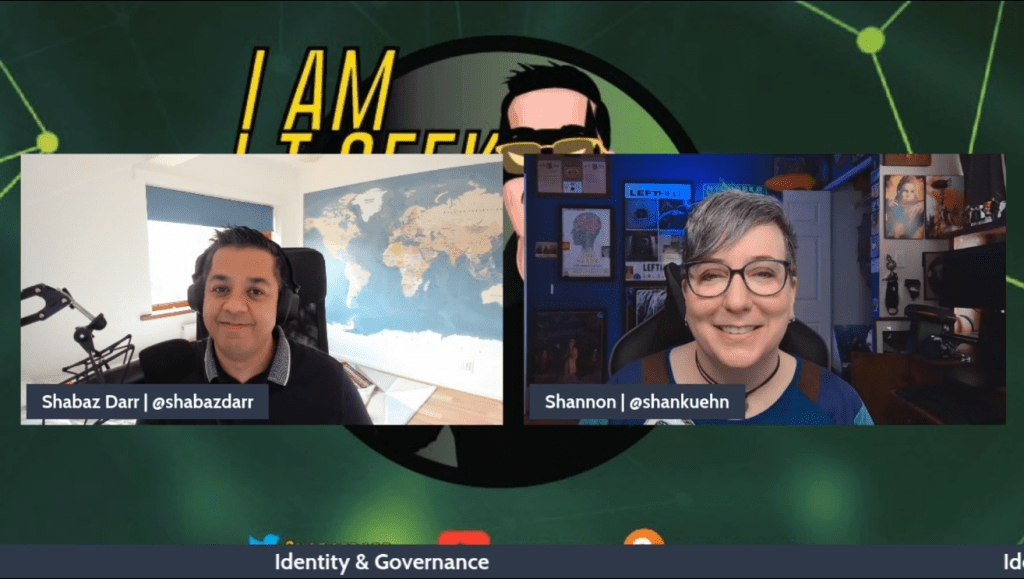
Welcome to this blog where I give a short synopsis of episode 1 of my Identity & Governance YouTube series which is all about ‘Demystifying Licensing’. I am once again joined by the amazing Shannon Kuehn, and we take a closer look at the Azure AD P2 license vs the Enterprise Mobility & Security E5 license!
We talk about some of the features organizations get with Azure AD P2 but might not understand the benefit they can bring. We use examples from our own experience where we have worked with clients who were not utilizing all their features as they did not understand the significance!
Check the video out below for a more indepth view of our discussion. Please do hit the like button and subscribe to the channel so you do not miss any of the series.
Salam, Namaste, Ola and Hello! Welcome to the I AM IT GEEK blog! This short blog is to introduce my latest YouTube series where I am once again collaborating with the amazing Shannon Kuehn!
This is the Intro blog with a link to the full video below. In this short video we introduce ourselves and talk about what we have in store for the rest of the series. We break down what you can expect in each video and the message we want to get across with this series on Identity and Governance in Microsoft Cloud!
Please do follow the series, give it a like and subscribe to my channel to make sure you do not miss out!
Welcome to episode 2 of my Nerdio series!! As my subscribers and followers will know, I am a huge fan of Azure Virtual Desktop and Nerdio has been on my list of services and tools to try for a while now.
This is the second episode in which I deploy Azure Virtual Desktop services via the Nerdio for Manager console. I show how easy it is to provision AVD services, as well as share some of my own insights and experiences. Below is the link to episode 3 so I hope you enjoy….do not forget to like and subscribe!
Welcome to my new series and this one is a bit of a mini-series as its only 4 episodes! As my subscribers and followers will know, I am a huge fan of Azure Virtual Desktop and Nerdio has been on my list of services and tools to try for a while now.
This first episode is an introduction to what I will be covering in the rest of the episodes and I also take a quick dive into the Nerdio Manager tenant and give it a quick overview. In future episodes I will provision the Nerdio Tenant from scratch, provision Azure Virtual Desktop services from the Nerdio Manager console and also look at how we can manage all those resources. Below is the link to episode 1 so I hope you enjoy….do not forget to like and subscribe!
It has been a while since I did a blog due to focusing on YouTube content so I had a small list of topics I wanted to write about whilst I have a bit of a break! The first topic is Endpoint Analytics and this is a service I recently demoed for a client who was looking for a way to monitor their existing EUC estate that was using Microsoft Endpoint Manager to manage devices.
In this blog I will coer the following topics?
What is Endpoint Analytics?
Requirements
Features
What benefits does it give organizations?
Video Demo of the service
What is Endpoint Analytics?
Microsoft Endpoint Analytics is the monitoring service used by Microsoft Endpoint Manager which enables organizations to obtain granular and detailed data on their Windows 10 EUC estate. It is also part of the Microsoft Productivity score, (https://docs.microsoft.com/en-us/microsoft-365/admin/productivity/productivity-score?view=o365-worldwide) which provides metrics, insights and recommended actions you can take to utilize Microsoft 365 more efficiently.
The insights you obtain from the reports in Endpoint Analytics allow administrators to understand how the users in the business are working as well as the how Windows 10 is behaving. This in turn enables you to understand information on the quality of the experience the business is giving to its end users without getting direct feedback from the users themselves.
Endpoint Analytics focuses on the following main features that we will discuss later in this post:
Startup Performance
Proactive remediations
Recommended Software
Application Reliability (Preview)
Work from Anywhere (Preview)
At the time of this blog, both ‘Application Reliability’ and ‘Work from Anywhere’ are in preview.
Requirements
There are prerequisite requirements that need to be met from a licensing perspective, when enrolling devices via Intune and via Configuration Manager, proactive remediation scripting requirements, and permission requirements.
Licensing Requirements: You require a valid license for devices that are enrolled into Endpoint Analytics which is essentially anything that has an Intune subscription. These include Microsoft 365 Business Premium, Microsoft 365 E3 & E5. For Proactive remediation’s, any of the following licenses (or any subscription that includes them) is required: Windows 10 Enterprise E3 or E5 (which are included in Microsoft F3, E3, or E5), Windows 10 Education A3 or A5 (which is included in Microsoft 365 A3 or A5) and Windows 10 Virtual Desktop Access (VDA) per users.
Requirements when enrolling devices via Intune: Windows 10 Pro, Pro education, Enterprise or Education are only supported and it must be version 1903 or later. The Windows 10 device has to be either Azure AD Joined or Hybrid AD joined. You need to ensure you have clear connectivity to the Microsoft public cloud and finally Intune Service Administrator role is required to start information gathering (but we will go into more detail around permissions shortly)
Proactive Remediation Scripting Requirements: To start with, devices must either be Azure AD joined or hybrid AD joined meet the following criteria: Be managed by Intune and have either Windows 10 Enterprise, Pro, or Education, or be co-managed running Windows 10 version 1093 or later.
Permission Requirements: For Endpoint Analytics permissions the following is required: An appropriate role under the Endpoint Analytics, Organization or School Administrator categories. Read permission under the Help Desk Operator, or Endpoint Security Manager Intune roles and finally Reports Reader Azure AD role (https://docs.microsoft.com/en-us/azure/active-directory/roles/permissions-reference#reports-reader). To utilize Proactive Remediation’s you need to grant the appropriate role that comes under the Device Configurations category.
A few more final requirements you need to be aware of is making sure that if you do any type of proxy in between your devices and Endpoint Analytics that you ensure the following URLs are accessible:
There also needs to be a minimum of 10 x Windows 10 devices enrolled into Intune (Azure AD joined or Co-managed/Hybrid joined) in your tenant before Endpoint Analytics will start to collect data, and it will take up to 72 hours (from experience) for the tenant to report on what it has found.
Features
As mentioned earlier in the post has 5 main features that we will now discuss in more detail –
Startup Performance: This section of Endpoint Analytics is broken down into the following areas:
Startup Score: This is a weighted average of the core boot score and core sign-in score. In this section the core boot phase includes group policy processing (computer GPOs) and the time it takes to get to the sign-in screen. The core sign-in phase includes group policy processing (user GPOs), the average time between sign-in and when the desktop renders and the average time between when the desktop renders and when CPU usage falls below 50%.
Model Performance: This section shows a comparison of startup and restart times for all the different device make and models in your Microsoft 365 tenant. You will only see device models that have at least 10 devices of the same type associated with your tenant (for example you need at least 10 Microsoft Surface Pro devices before it will show in this tab)
Device Performance: This section allows you to have an overview of all device that are enrolled into your tenant. You can click on an individual device to then dig deeper and get further insights into its behavior.
Proactive Remediation’s: In this section you have the ability to create and run script packages that will proactively fix the top support issues in the tenant. By default you have two scripts in this section – Restart stopped Office C2R svc and Update stale Group policies. You can the status of the script as well as the number of device that had issues found by the script and devices where no issues were found by the script.
Recommended software: In this section you can review the ‘Software adoption score’ for your tenant. The score is made up of 4 categories:
Windows 10: This is the percentage of devices that are running Windows 10
Cloud identity: This metric is the percentage of devices that are registered with Azure AD
Cloud Management: This metric is the percentage of devices that are enrolled into Intune
Windows Autopilot: this shows the percentage of devices that are enrolled using Autopilot.
Application Reliability: This feature is one of two which are still in preview and is broken down into three sub-sections –
App reliability score
App Performance
Model Performance
Work from anywhere: This section is also in preview and shows how prepared your tenant is to enable users to work form anywhere. It is broken down into four sub-sections:
Overview: This gives an overall view of your tenant and shows an average score. The average score is calculated from four areas: Windows 10, Cloud identity, Cloud Management and Cloud Provisioning.
Windows 10: This section shows you devices that are evaluated in the Windows 10 metric. Here you can see the device name, how the device is managed (co-managed or Intune) as well as the Windows and OS versions.
Cloud Identity: This section shows devices that are either hybrid Azure AD or Azure AD joined ad evaluates them with the cloud identity metric.
Cloud Management: This section shows devices that are managed by Configuration Manager and Intune as well as co-managed devices and evaluates them with the Cloud management metric.
What benefits does it give an organization?
Endpoint Analytics gives organizations a granular view on how its EUC Windows 10 estate is performing which in turn give them insight into what the user experience is. It gives you access to information about login times and performance without having to look through millions of events which can be hugely time consuming.
This service allows organizations to test how windows updates will affect pilot groups and mitigate risk to users and Windows 10 devices. You can proactively fix potential issues before they occur and quickly report on trends to predict problems before they occur.
The main aim of the Endpoint Analytics service is to improve productivity or users and minimize IT admin overhead. It does this by enabling organization’s to have greater insights into the end user experience and Windows 10 device performance. This in-turn enables them to improve end-user experience with the proactive support approach I mentioned earlier.
Demo Video
The following video is a short walk-through the Microsoft Endpoint Analytics which will show all the features we have discussed in more detail.
I hope you enjoyed this blog and video and that you find it useful. Please feel free to comment on the blog or video as feedback and questions are always appreciated. Do not forget to subscribe to my YouTube channel – https://youtube.com/iamitgeek
It has been just over a week since I took the Beta exam for the AZ-140: Configuring and Operating Windows Virtual Desktop on Microsoft Azure. I decided to do a small write up with some of my thoughts, experiences and recommendations around study resources that I feel will help others prepare for the exam.
At the time of writing this post I am still waiting to find out if I have passed or not, as with Beta exams it takes up to 2 weeks before you find this information out. This post is not a break-down of the subjects that are covered on the exam as this information is available via Microsoft’s website at this link: https://docs.microsoft.com/en-us/learn/certifications/exams/az-140
My thoughts: The following are some of my thoughts after taking the exam:
Three things I am I am glad I learnt:
FSLogix
Identity Management
Virtual Machine Sizing
Things I wish I had learnt:
WVD PowerShell commands
Most common question areas I got in my exam:
Identity Management (Azure AD, Azure AD Domain Services & Active Directory on-premises)
Azure Networking (VNET DNS, Peering and VPNs)
FSLogix
Least common question areas I got in my exam:
Image Deployment
Application publishing
Hostpool Deployment
I took this exam only a few days after it was released, therefore there was very little information around other people’s experience with this exam, only the information around what areas are covered from Microsoft (see link at the start of the post). In all honesty I was expecting more questions around Windows Virtual Desktop Services, like Hostpools, Application Groups, Load Balancing Algorithms and FSLogix, however only one of those topics (FSLogix) came up multiple times.
My experience and prep for the Azure Associate Administration exam probably helped me more when taking this exam as there is much more focus on Azure services that integrate with Windows Virtual Desktop (Identity Management, Azure Network, VM sizing and PowerShell commands). If you are not familiar with Azure at an Administration level at least, I would not recommend you take this exam as you will find it difficult.
Exam Breakdown: The following information is a breakdown of the types of questions I got in my exam and the amount of time I spent on them –
Order
Section
Time Spent (minutes)
Difficulty /10?
1
Case Studies
15 minutes
6
2
General Multiple Choice Questions
30 minutes
7
3
Scenario Based Questions
15
5
4
5
Total (minutes):
60/120
As you can see from the above table the sections of the exam were pretty standard for a Microsoft exam (for those that have done one before). My exam consisted of 43 questions in total, 10 as part of the case study, 23 as part of the multiple choice questions and then 10 as part of the scenario based questions. I think due to my everyday exposure to Windows Virtual Desktop and Azure services in general I did not find there was anything that caught me out, however there were sections like the case studies where I did have to think about some of the answers.
Learning Resources
As I mentioned earlier in the post, I took the exam only a few days after it was released as a Beta exam, however here are a few really useful links I used in my preparation:
Dean Cefola (https://twitter.com/MSAzureAcademy) does a great YouTube series on the AZ-140 exam prep which you can find here: https://www.youtube.com/c/AzureAcademy/featured. By the time I took my exam there were only 12 episodes out and I believe a few more have been added since then, however those 12 episodes were very useful in my preparation.
Microsoft Learn as always has a great set of resources and I will always recommend you start off with his great free content no mater which subject your exam is in. you can find the Windows Virtual Desktop specific content here: https://docs.microsoft.com/en-us/learn/paths/m365-wvd/
When it comes to preparation the only other advise I can give is go through the steps on creating a demo environment of Windows Virtual Desktop in Azure including all the integrated Azure services like Azure AD Domain Services, Azure VNET, FSLogix with Azure Files, Windows 10 multi-session image creation and Application publishing. Having some hands on experience will allow you to use your experience to answer the questions, as well as the information you have learnt from other resources.
Keep an eye out on m Twitter feed to see if I pass in the coming weeks ( https://twitter.com/ShabazDarr ). Hope you find this helpful, if you would like any more information feel free to tweet me @shabazdarr or ask a question in the comments section below!
Welcome to the #AzureSpringClean 2021! It is my pleasure to be opening up this event and taking part in it for the 2nd year running! This is an amazing community initiative dedicating to promoting well managed Azure tenants. You can catch all the updates from https://www.azurespringclean.com/
The following post is in relation to Identity management in cloud, specifically Microsoft. In my experience there are three main services with Azure Identity Management:
Azure Active Directory (Azure AD)
Hybrid AD
Azure Active Directory Domain Services (Azure AD DS)
I will discuss how each works, in what scenarios you can make best use of them and finally some pros and cons for each one.
Azure Active Directory
Azure Active Directory is Microsoft’s cloud-based identity management service which integrates with Exchange Online, SharePoint Online and Microsoft Teams to name a few of the services. Like most Azure Cloud services, Azure Active Directory (or Azure AD for short) has different levels of features, all dependent on the subscription you assign the user. The four main levels are:
Azure Active Directory free
Azure Active Directory Premium P1
Azure Active Directory Premium P2
Pay as you go feature licenses
Azure Active Directory free provides user and group management, self-service password change for cloud users and SSO capabilities in Azure, Office 365 and certain 3rd party SaaS apps. You can also have integration with on-premises Active Directory but this will be discussed further in the Hybrid section
Azure Active Directory Premium P1 has all the same features and capabilities as the free version but has more support with hybrid users, advanced administration including dynamic groups and cloud password write back capabilities.
Azure Active Directory Premium P2 has all the same features and capabilities as Premium P1 but also, P2 offers Active Directory Identity Protection to help provide risk based conditional access to your applications and critical company data.
Pay as you go feature license: These are additional feature licenses, such as Active Directory Business-to-Customer (B2C). B2C can help provide identity and access management solutions for your customer-facing applications
Azure AD can be used in a few different scenarios, for example: If your Infrastructure is fully Microsoft 365 and you are using Azure AD to manage user accounts and groups, Exchange Online for email, SharePoint online for Document management, Teams for collaboration and telephony and Intune to manage Windows 10 device and security. Another scenario you can use Azure AD is in a Hybrid environment, where you need to Synchronize Active Directory on-premises users and groups with Microsoft 365. This will be discussed further in the Hybrid Section
Pros of Azure AD include:
Centralized administration of users through different locations
Comprehensive Organizational Unit management via a single interface
Microsoft Integrated Security
Cons of Azure AD include:
No integration with on premises applications unless they support SAML or requires further configuration and resources (Hybrid)
Has a massive reliance on Microsoft 365 so any outage can cause a lot of issues
Below is a two part video series I did on Azure Ad with a demo look around the portal!
Azure Hybrid Identity
Azure Hybrid identity requires both Azure AD and Active Directory on-premises. To achieve Hybrid Identity with Azure AD, one of three authentication methods can be used:
Password hash Synchronization (PHS)
Pass-through authentication (PTA)
Federated (AD FS)
These authentication methods also provide single-sign on (SSO) capabilities which allows to automatically sign in to apps on corporate devices which are connected to your corporate network
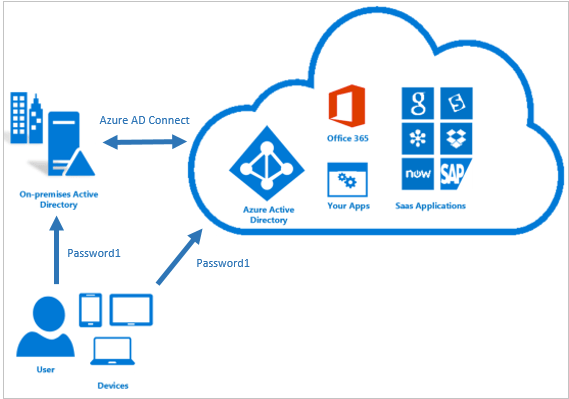
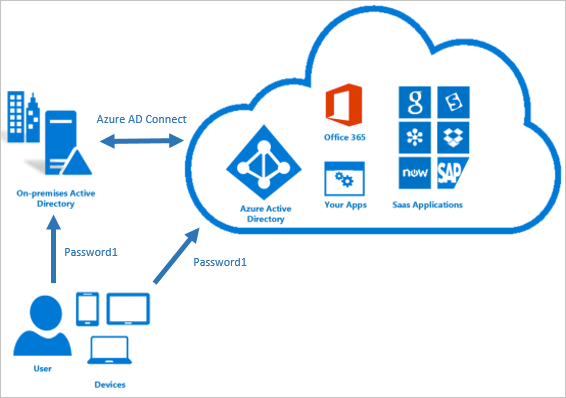
Password Hash Synchronization can be configured (as with all three methods) using Azure AD connect utility. Azure AD connect synchronizes a hash, of the hash, of a users password from an on-premises Active Directory instance to a cloud-based Azure AD instance.
Active Directory on premises stores password in the form of a hash value representation, of the actual user password. To Synchronize your password, Azure AD connect sync extracts your password hash from the on-premises Active Directory instance. Extra security processing is applied to the password hash before it is synchronized to the Azure Active Directory authentication service. Passwords are synchronized on a per-user basis and in chronological order.
Pass-through authentication allows users to sign in to both on-premises and cloud-based applications using the same password. This feature is an alternative to Password Hash Synchronization , which provide the same benefit of cloud authentication. You can combine pass-through authentication with Single-sign on features so when users are accessing applications on their corporate machines inside the network they do not need to type in their passwords.
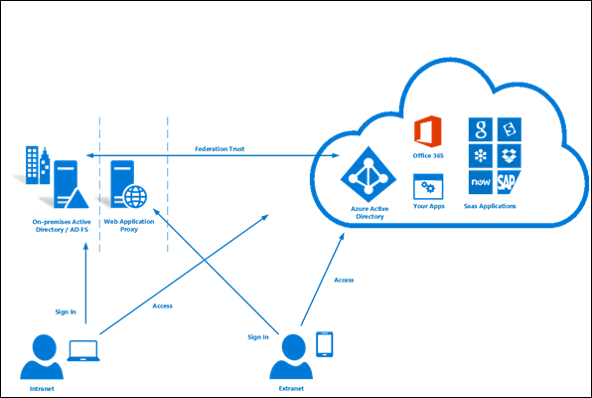
Federated (AD FS) is a collection of domains that have established a trust. The level of trust may vary however, but typically includes authentication and almost always includes authorization. You can federate your on-premises environment with azure AD and use this federation for authentication and authorization. This sign-in method ensures that all users authentication occurs on-premises. This method allows administrators to implement more rigorous levels of access control. There is much more to Federation but that is out of the scope of this blog post!
These three different methods of Hybrid authentication all have various scenarios which they support. Password Hash Synchronization is ideal for if you have an on-premises Infrastructure but have recently started your journey into Microsoft 365 with a few services like Exchange Online and SharePoint Online. Password Hash Synchronization will allow users to have a single password and also have single-sign on when on the corporate network.
Pass-through authentication is ideal for businesses wanting to enforce their on-premises Active Directory security and password policies into the Cloud identity.
Active Directory Federation can provide additional advanced authentication required for smart-card based authentication or third-party MFA.
Password Hash Pros:
Cloud scale/resilience since this all native Azure AD with no other reliance during authentication
Provides breach replay protection and reports of leaked credentials since the stored hash can be used t compare against credentials found on the dark web
Password Hash Cons:
If the Active Directory Account has been locked, restricted hours set or password expired it will not impact the ability to logon via azure AD
Pass-through authentication (PTA) Pros:
This is lighter than using federation and establishes an inbound 443 connection to Azure AD not requirement any inbound port exceptions
Any Active Directory account restrictions like hours, account lockout, password expired would be enforced
Pass-through authentication (PTA) Cons:
Legacy authentication (Pre 2013 Office clients) may not work with PTA
Federation Pros:
Supports 3rd party MFA and custom policies/claims rules
Certification based authentication
Federation Cons:
Large amount of Infrastructure required
Firewall exceptions needed with the ADFS Proxy
Can limit scale/availability
You can find a two part video series below where I cover Hybrid AD including a demo of Azure AD connect below:
Azure Active Directory Domain Services
Azure Active Directory Domain Services (Azure AD DS for short) provides managed domain services such as:
Domain Join
Group Policy
Lightweight directory access Protocol (LDAP)
Kerboros/NTLM authentication
You use these domain services without the need to headaches of having to manage, deploy and patch a domain controller in the cloud. Azure AD DS integrates with your existing AD tenant which makes it possible for users to sign in using their existing credentials. You can also use existing groups, and users accounts to secure access to resources which provides a smoother ‘lift-and-shift’ of on-premises resources to Azure.
Azure AD DS replicates identity information from Azure AD, so works with Azure AD tenants that are cloud-only, or synchronized with an on-premises Active Directory Domain Services (AD DS) environment. The same set of Azure AD DS features exist for both environments.
Azure AD DS offers alternatives to the need to create a VPN connection back to an on-premises AD DS environment or run and manage VMs in Azure to provide identity services. The following feature of Azure AD DS simplify deployment and management operations:
Simplified Deployment experience: Azure AD DS is enabled for your Azure AD tenant using a single wizard
Integrated with Azure AD: User accounts, group membership and credentials are automatically available from your Azure AD tenant.
NTLM and Kerboros Authentication: With support for NTLM and Kerboros authentication, you can deploy applications that rely on Windows-integrated authentication
Much like Azure AD, Azure AD DS can be used in a Hybrid environment to include integration with on-premises applications. Below is a video that goes into much more detail along with demo on Azure AD Domain Services!
I hope you enjoyed this blog! Keep an eye out on Twitter for #AzureSpringClean and stay tuned for much more amazing content this month!
I have recently started my own YouTube Channel called ‘I am IT Geek’ where I have started to publish video series all around different Microsoft Cloud services – https://www.youtube.com/channel/UCt5sNdu14RterwDfEDEJidQ . It has so far been an amazingly fun experience and I thought I would get my experience down on paper in a blog in case anyone else within the wider online IT community wants to start there own and was not sure how!
Where it all started!?
Almost 12 months ago I took part in the Azure Advent Calendar Azure community initiative where I did a video based on Multi-Factor Authentication – https://www.youtube.com/watch?v=thep3IYzg2k . This was the first time I had dipped my toe into the video content world and it was awfully painful. I spent most of the day recording (a good 8 hours) and found the whole experience of being in front of camera very stressful. The equipment I used at the time was owned by my employer at the time and was pretty good and included a camcorder and multiple mics for optimum sound. The saying ‘All the gear and no idea’ comes to mind and with this being my first experience it was very much the case!
What little did I know that recoding the content was probably the easy part and the fun of editing was to come! Much like the recording of the actual video, at the time it was my first experience editing video content as well. I was lucky enough at the time that a good friend of mine, Neil Roberts, was kind enough to loan me his MAC Book laptop which had some amazing free video editing software on it. I spent hours editing and all in all it was a vey traumatic experience.
I decided at that point that I was not ready to make video content, however less than one year on things have changed! Where as with this fist video, I jumped into it without really doing any research into equipment, watching how other people in the community record theirs or even what software is needed. I made sure I did all of these things this time around and it has made a lot of difference.
Why start video content?
I have been contributing to the Azure and Microsoft communities with mainly blog posts and occasionally taking part in some of the community initiatives like the Azure Spring Clean and the Azure Back to school, however these have again all been blog based. I wanted to contribute more so back in July I presented at my first Azure User Group (Leeds Azure User Group) and due to the COVID situation it was virtual. It was the first time since the YouTube video I was presenting to people on camera and the experience was much different. Obviously there was no editing to be done, however I felt much more comfortable speaking on camera to people and I enjoyed preparing the slides! Since then I have presented at several more User Groups and the more I have done the more confident I have become. However I still felt like I wanted to contribute more, so what was left? Making video content!
How did I go about I differently this time?
As I mentioned earlier, once I made the decision to create YouTube content I invested time in looking into the right type of equipment first. Sound and video are vital so I reached out to others within the online Azure community to see what they had used. In the end I went with:
This mic had great reviews and was also within the budget I had set myself. It has honestly been a god send and removed a lot of the echo I was getting when trying to record without it!
This mic was also essential to making sure the quality of the content was clear. I was lucky enough to be given this as a gift from some friends earlier this year so it was perfect timing!
Software: The first time I was loaned a MAC Book with some free video editing software on it, however I did not have that luxury now. I once again looked to the always helpful online Azure community for advice and I have been using a combination of OBS Studio to record the content and CyberLink Power Director to edit the videos before uploading them into YouTube. OBS studio is free however Power Director is not free. A lot of people recommended Camtasia, however this was again outside my budget, but this may be something I look at using in the future.
Branding: Another aspect I believe to be important but maybe not all people will agree is ensuring you get good branding done. I had been recommended to use an artist called Mary Crews – https://twitter.com/MaryCrewsGFX to get my logo, banner and intro video done and the output was amazing. Having a reliable and talented artist to create the designs and branding was what I believe really helped finish off my channel and presentation content.
Having all the correct kit and branding is of course all pointless if you don’t have any content to share! During my research I watched a lot of channels, including Gregor Suttie’s – https://www.youtube.com/channel/UC6Z6po-HoVP6NEp88KYXSPw, Derek Campbell – https://www.youtube.com/user/Delboy3g and Dwayne Natwick – https://www.youtube.com/channel/UCIWicD_sUxH6EMH4ndG5NxQ to name a few. They all had different methods of sharing content, Derek does more podcast style interviews, Gregor does short, very helpful videos on how to configure and fix cloud related services and Dwayne does video series on a specific topic and breaks them down into episodes. I decided I would do a mixture of all these on my channel at some point. At the moment I have started off by doing Video series based on different topics (currently the Azure MFA series), but I will also be doing some interview style videos as well as some quick short ‘how to’ and quick fix videos as well.
In summary this all really comes down to me wanting to share and contribute more to the Azure/Cloud online community, one that has given so much to me. I feel like I want to repay that and try to help others who are maybe starting on there IT journey like I once was.
Hope you find this helpful, if you would like any more information feel free to tweet me @shabazdarr or ask a question in the comments section below! Until next time, ‘IamITGeek’ over and out!
Firstly I would just like to say that I hope everyone is doing well and keeping safe in these uncertain times! This is another post that has been sat in my drafts for a few weeks now but has been a service I seem to be deploying a lot of with the recent COVI-19 situation causing businesses to evaluate there remote working policies.
I was recently lucky enough to present this specific use case at the inaugural WVDUK User Group which was a virtual event via Teams (like most user groups at the moment!) and thought it would be good to follow it up with a blog post!
Use Case Problem/Requirement
Right at the start of the pandemic I was hired by a 3rd party to implement a Windows Virtual Desktop environment for an NHS trust in the UK. With lock down looming this particular trust had a number of problems & requirements they needed addressing to ensure there staff would still be able to function as a business and carry on the fight against COVID. They had the following problems/requirements they needed the new solution to be able to resolve:
Work from home
One major requirement was that the trust needed to be able to function with over 200 of their staff working from home. The two options available to the trust were either sourcing, imaging and deploying laptops to over 200 users or a remote session based solution. As you can imagine, sourcing laptops early on in the pandemic was a major issue as there was so much demand. To add to this, the amount of time needed to image and deploy the devices would be almost unmanageable, not to mention currently having no way to remotely manage all these devices
Time constraints
This particular NHS trust were under extreme tight time constraints. As mentioned earlier, lock down was looming and they were not sure how this would affect the users being able to travel into work. Whatever solution was going to be implemented needed to be done quickly and efficiently, another reason why issuing laptop devices to over 200 staff was just not practical or manageable in this scenario.
Robust Solution
They needed a robust solution that could easily scale up and down depending on demand and the number of users working from home. The initial requirement was for 200 concurrent users, however if the solution was successful it could grow very fast.
Secure Solution
The solution needed to be secure as with the remote solution there was a potential for users connecting in via their personal devices. The NHS trust needed to ensure they were able to protect their data and Infrastructure but have still allow staff the flexibility of using their own devices
On-Premises Integration
The final requirement was that the NHS trust needed to ensure the solution was able to integrate with there existing on-premises Infrastructure. 90% of the Infrastructure was hosted on-premises including all the application stack and file shares. This needed to be accessible without too much administration overhead.
Why Windows Virtual Desktop?
The NHS trust had decided to move forward with Windows Virtual Desktop, but what was it about WVD that made them go down this route? Well the main and obvious reason is that it solved the problem/requirement.
Windows Virtual Desktop can be accessed from any device in any location as long as you have an Internet connection.
It is a solution that can be implemented quickly. At the time of this project WVD was not available via the Azure portal as we find it now in the recent Spring release, but it had to be configured and managed via PowerShell, however it was still a quick process to implement.
Windows Virtual Desktop was robust, highly available and most importantly you are able to scale up, and down for that matter, with ease and speed. You can easily add a new session host into the Host pool as and when the number of users increases.
From a security perspective, the NHS Trust would be able to use Multi-Factor Authentication and Conditional Access to ensure they could protect data and access to the Infrastructure.
Finally, although this is not a feature of WVD specifically its part of Azure. The NHS trust were able to integrate the WVD environment with the on-premises Infrastructure by implementing an IPSEC Site to Site VPN via the Azure Native Virtual Network Gate.
Implementation Challenges
Windows 10 Image: The first major hurdle was getting the correct image into Azure as this particular NHS client had a very specific Windows 10 golden image they wanted to deploy to the WVD tenant. One of the pre-requisites for the Windows 10 image you can use in the WVD environment is that it needs to be a multi-session version of the OS, unfortunately I learnt this the hard way and initially the image as captured on a standard Windows 10 Pro OS version. Luckily this was caught in the POC/testing phase, so we were able to follow the correct process which was:
Create a VM in Azure
Export it to a VHD
Download it and import into an on-premises Hyper-V host
Build the golden image
Sys-prep image and export VHD
Upload back into Azure and create a VM from this VHD.
Sys-prep the VM in Azure and then capture the image
Once this completed the captured image can be used to provision to the WVD deployment during the provisioning process
MFA Adoption: Although there were no issues with the configuration of MFA with conditional access, one issue we found was that users were struggling with adopting MFA. This specific NHS trust had already been using Microsoft 365 for Exchange Online, however they had not yet adopted MFA for this, meaning that this was the first exposure to it which made it a massive learning curve for the users. We created really granular documentation and guides to try and mitigate any issues, however we were still finding users were enrolling personal devices by mistake during the process, or in some cases totally screwing up the MFA configuration process which meant they needed Admin intervention to reset MFA and try again. We obviously couldn’t control how users followed the documentation, it just meant we had to go into a lot of more detail in the documentation than we would have liked.
On-Premises Integration: One of the biggest challenges was the requirement to have on-premises integration. Originally the scope was to integrate the WVD deployment with Azure Active Directory Domain Services, however during the testing phase the customer realised that there were several group policies that were essential to the deployment. In the existing configuration the hosts were added to the Azure AD DS instance, hence didnt have any integration with Group policy which was on premises. To fix this I essentially had to amend the VNET’s DNS settings so it pointed to the on premises Domain Controllers (via a Site to Site VPN), remove the WVD hosts from the Azure AD DS domain and join the on premises domain. This allowed the VMs to be placed in the relevant OU in Active Directory and in turn pickup the correct Group Policies.
Where are they now?
I wanted to finish this post off with a little bit on now they are almost 5 months on from when the project was completed, how have the NHS trust adapted to this new way of working and some of the benefits Windows Virtual Desktop has brought them
5 months on and they have over 200 staff working from home and have already added another two hosts into the pool. This shows that the Windows Virtual Desktop deployment has solved the problem they had of getting users working remotely as quick as they could without having to issue new laptops to so many staff.
Unfortunately MFA is still causing the same issues no matter how granular we make the documentation. This has obviously been a massive learning curve for the users but its not something we can work around…its necessary and we continue to try and educate the users best we can.
To put it simply, Windows Virtual Desktop is saving lives! By allowing this NHS trust to send users home and continue to do there jobs in an efficient way it has helped lower the risk of people getting infected and those people in turn have been able to play a vital role in the fight against COVID19.
Hope you find this helpful, if you would like any more information feel free to tweet me @shabazdarr or ask a question in the comments section below! Until next time, ‘IamITGeek’ over and out!
Welcome to the 7th September instalment of the ‘Azure Back to school’ month. This is another great initiative setup by Dwayne Natwick (@DwayneNcloud) to share various topics with the community on all things Azure. My blog for this is around Azure Hybrid Identity, Hybrid Device and Hybrid Exchange. You can follow the whole month using the #AzureBacktoSchool on twitter and also on the following link: https://azurebacktoschool.tech
I have done a lot of projects in the last 12 months for customers where they are starting there cloud journey, and rather than going ‘all or nothing’, they are taking a hybrid approach and using on-premises services along side cloud services.
In this blog I am going to go discuss Azure Hybrid options available from a SaaS (Software as a Service) perspective and how best to configure them. The three main areas I touch on will be:
Hybrid Identity (Azure AD and Active Directory on-premises)
Hybrid Device (Intune and Group Policy)
Hybrid Exchange (Exchange Online and Exchange on-premises)
Hybrid Identity: Hybrid Identity is where the user objects are stored and managed in Active Directory on-premises and synchronised to Azure AD. To achieve hybrid identity with Azure AD, one of three authentication methods can be used, depending on your scenarios. The three methods are:
Password Hash Synchronisation
Pass-through Authentication
Federation
All three methods are configured using Azure AD Connect tool which is traditionally installed on a domain controller within the on-premises Infrastructure. Password Hash Synchronisation is an extension to the directory synchronisation feature implemented by Azure AD Connect sync. You can use this feature to sign in to Azure AD services like Office 365.
Azure Active Directory Pass through Authentication provides the same benefit to Password Hash Synchronisation, however you would use pass through authentication if you want to enforce your Active Directory on-premises (Group Policy) password policy onto your users. There are some key benefits to using pass through authentication:
Great user experience
Easy to deploy and administer for the IT team
Secure as no passwords are stored in the cloud, only on-premises
Can be highly available by installing multiple agents on premises
Federation is where two or more domains have established trust between them. The level of trust can vary but typically includes authentication and authorisation.
You can federate your on-premises environment with Azure AD and use this federation for authentication and authorisation. This sign-in method ensures that all user authentication occurs on-premises. This method allows administrators to implement more rigorous levels of access control. As you can see, all three methods share a common theme, which is that the identity details and authentication process is controlled by the on-premises part of the hybrid setup
Hybrid Device: I have found recently that a lot of businesses want to start their journey into the cloud by utilising the MDM service available in Azure, which is Intune. The main issue with this has been that traditionally Group Policy is embedded for a lot of businesses and they use this to ensure all corporate Windows based machines follow the same security guidelines.
Since Intune has come into the picture as a Cloud MDM platform, it has slowly started to develop features that are also available in Group policy, but unfortunately no where enough for Intune to replace it. This is where having Hybrid device management allows you to have the best of both worlds. You can continue to manage devices with Group policy but also take advantage of some of the great features in Intune.
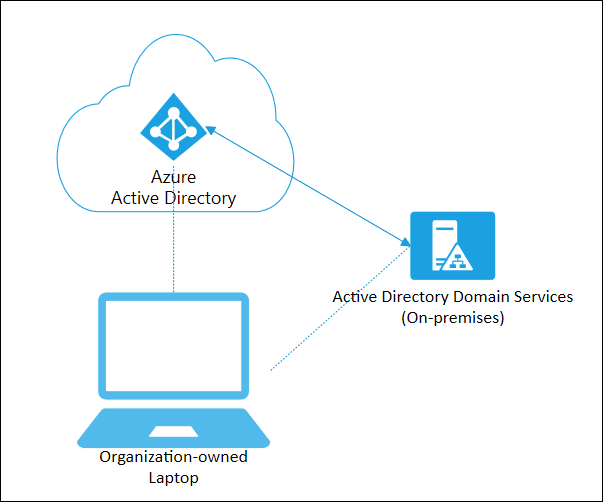
This specific feature is known as ‘Hybrid Azure AD Join’. User Azure AD Hybrid joined devices if:
You have Win32 apps deployed to these devices that rely on Active Directory machine authentication
You want to continue to use Group Policy to manage device configuration
You want to continue to use existing imaging solutions to deploy and configure devices.
You must support down-level Windows 7 and 8.1 devices in addition to Windows 10
When setting up your Infrastructure for Hybrid Azure AD join you need to ensure you have configured Azure AD connect for Hybrid devices as well as configuring Group policies to add specific URLs to Intranet Zone assignments and a Group policy to enable automatic enrolment. You then need to ensure that the machines you wish to be Hybrid Azure AD Joined reside in the Organisational Unit you link the various Group policies to. For a full list of prerequisites, have a read of this link: https://docs.microsoft.com/en-us/azure/active-directory/devices/hybrid-azuread-join-plan
Hybrid Exchange: In its standard default configuration there is no link between Exchange on premises and Exchange online. You cannot have mailboxes in both platforms using the same domain without some sort of Hybrid configuration.
A hybrid deployment enables the following features:
Secure mail routing between on-premises and Exchange Online organisations.
A unified global address list (GAL), also called a “shared address book.”
A single Outlook on the web URL for both the on-premises and Exchange Online organisations.
Mail routing with a shared domain namespace. For example, both on-premises and Exchange Online organisations use the @yourdomain.com SMTP domain.
Centralised mailbox management using the on-premises Exchange admin centre.
Some companies implement Exchange Hybrid when they are planning on migrating to Exchange Online from on premises Exchange via either a staged or cut-over migration method. A hybrid deployment involves several different services and components:
Exchange Servers
Office 365 subscription that includes Exchange online
A common mistake made when implementing Hybrid Exchange for migration purposes is that once the migration is completed you should decommission Exchange on premises. The reason this is a mistake is due to the fact that within this implementation you will have configured Azure AD synchronisation between Active Directory on premises and Azure AD, where the user objects stored in Active Directory are synchronised to the cloud.
In an on premises Exchange environment, Active Directory objects get a lot of information from Exchange servers, and in turn with the AD synchronisation process this is then sent to the identity objects in the cloud. If you decommission all your Exchange servers on premises, this automatically removes all Exchange attributes from the Active Directory account, which in turn will synchronise with Azure AD accounts which will have a massive impact on your email service. Therefore Microsoft recommend you should have at least one Exchange Server that stays on premises in a Hybrid setup.
Big thank you to everyone contributing this month and another big thanks to Dwayne for all his hard work putting this together.
Hope you find this helpful, if you would like any more information feel free to tweet me @shabazdarr or ask a question in the comments section below! Until next time, ‘IamITGeek’ over and out!








 IamITgeek - aka Shabaz Darr