Azure Spring Clean: Azure Identity Management: Azure AD, Hybrid and Azure AD DS — March 22, 2021

Azure Spring Clean: Azure Identity Management: Azure AD, Hybrid and Azure AD DS

Salaam, Namaste, Ola and Hello!

Welcome to the #AzureSpringClean 2021! It is my pleasure to be opening up this event and taking part in it for the 2nd year running! This is an amazing community initiative dedicating to promoting well managed Azure tenants. You can catch all the updates from https://www.azurespringclean.com/

The following post is in relation to Identity management in cloud, specifically Microsoft. In my experience there are three main services with Azure Identity Management:

  • Azure Active Directory (Azure AD)
  • Hybrid AD
  • Azure Active Directory Domain Services (Azure AD DS)

I will discuss how each works, in what scenarios you can make best use of them and finally some pros and cons for each one.

Azure Active Directory

Azure Active Directory is Microsoft’s cloud-based identity management service which integrates with Exchange Online, SharePoint Online and Microsoft Teams to name a few of the services. Like most Azure Cloud services, Azure Active Directory (or Azure AD for short) has different levels of features, all dependent on the subscription you assign the user. The four main levels are:

  • Azure Active Directory free
  • Azure Active Directory Premium P1
  • Azure Active Directory Premium P2
  • Pay as you go feature licenses

Azure Active Directory free provides user and group management, self-service password change for cloud users and SSO capabilities in Azure, Office 365 and certain 3rd party SaaS apps. You can also have integration with on-premises Active Directory but this will be discussed further in the Hybrid section

Azure Active Directory Premium P1 has all the same features and capabilities as the free version but has more support with hybrid users, advanced administration including dynamic groups and cloud password write back capabilities.

Azure Active Directory Premium P2 has all the same features and capabilities as Premium P1 but also, P2 offers Active Directory Identity Protection to help provide risk based conditional access to your applications and critical company data.

Pay as you go feature license: These are additional feature licenses, such as Active Directory Business-to-Customer (B2C). B2C can help provide identity and access management solutions for your customer-facing applications

Azure AD can be used in a few different scenarios, for example: If your Infrastructure is fully Microsoft 365 and you are using Azure AD to manage user accounts and groups, Exchange Online for email, SharePoint online for Document management, Teams for collaboration and telephony and Intune to manage Windows 10 device and security. Another scenario you can use Azure AD is in a Hybrid environment, where you need to Synchronize Active Directory on-premises users and groups with Microsoft 365. This will be discussed further in the Hybrid Section

Pros of Azure AD include:

  • Centralized administration of users through different locations
  • Comprehensive Organizational Unit management via a single interface
  • Microsoft Integrated Security

Cons of Azure AD include:

  • No integration with on premises applications unless they support SAML or requires further configuration and resources (Hybrid)
  • Has a massive reliance on Microsoft 365 so any outage can cause a lot of issues

Below is a two part video series I did on Azure Ad with a demo look around the portal!

Azure Hybrid Identity

Azure Hybrid identity requires both Azure AD and Active Directory on-premises. To achieve Hybrid Identity with Azure AD, one of three authentication methods can be used:

  • Password hash Synchronization (PHS)
  • Pass-through authentication (PTA)
  • Federated (AD FS)

These authentication methods also provide single-sign on (SSO) capabilities which allows to automatically sign in to apps on corporate devices which are connected to your corporate network

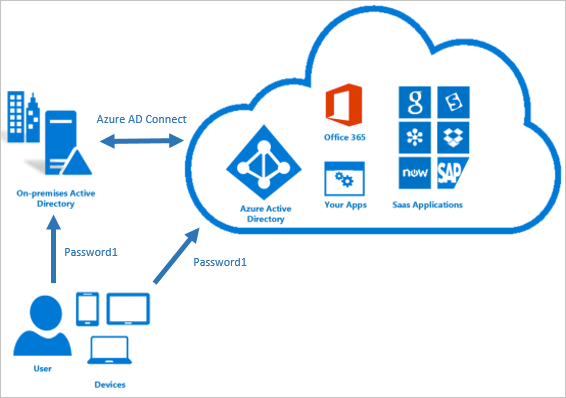
Password Hash Synchronization can be configured (as with all three methods) using Azure AD connect utility. Azure AD connect synchronizes a hash, of the hash, of a users password from an on-premises Active Directory instance to a cloud-based Azure AD instance.
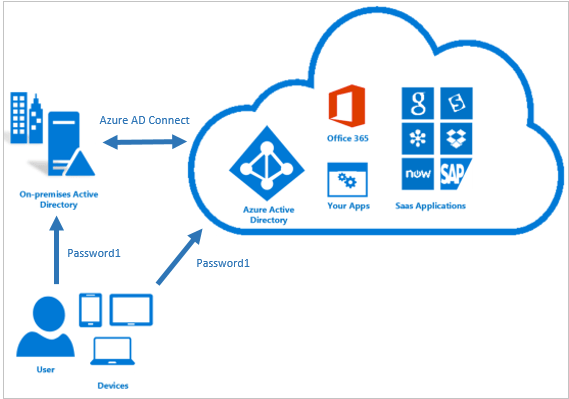
Active Directory on premises stores password in the form of a hash value representation, of the actual user password. To Synchronize your password, Azure AD connect sync extracts your password hash from the on-premises Active Directory instance. Extra security processing is applied to the password hash before it is synchronized to the Azure Active Directory authentication service. Passwords are synchronized on a per-user basis and in chronological order.

Pass-through authentication allows users to sign in to both on-premises and cloud-based applications using the same password. This feature is an alternative to Password Hash Synchronization , which provide the same benefit of cloud authentication. You can combine pass-through authentication with Single-sign on features so when users are accessing applications on their corporate machines inside the network they do not need to type in their passwords.

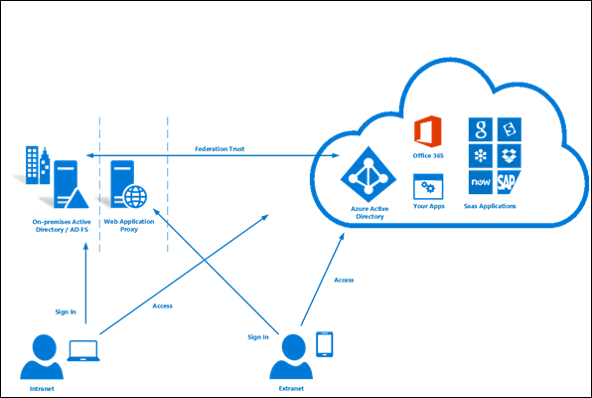
Federated (AD FS) is a collection of domains that have established a trust. The level of trust may vary however, but typically includes authentication and almost always includes authorization. You can federate your on-premises environment with azure AD and use this federation for authentication and authorization. This sign-in method ensures that all users authentication occurs on-premises. This method allows administrators to implement more rigorous levels of access control. There is much more to Federation but that is out of the scope of this blog post!

These three different methods of Hybrid authentication all have various scenarios which they support. Password Hash Synchronization is ideal for if you have an on-premises Infrastructure but have recently started your journey into Microsoft 365 with a few services like Exchange Online and SharePoint Online. Password Hash Synchronization will allow users to have a single password and also have single-sign on when on the corporate network.

Pass-through authentication is ideal for businesses wanting to enforce their on-premises Active Directory security and password policies into the Cloud identity.

Active Directory Federation can provide additional advanced authentication required for smart-card based authentication or third-party MFA.

Password Hash Pros:

  • Cloud scale/resilience since this all native Azure AD with no other reliance during authentication
  • Provides breach replay protection and reports of leaked credentials since the stored hash can be used t compare against credentials found on the dark web

Password Hash Cons:

  • If the Active Directory Account has been locked, restricted hours set or password expired it will not impact the ability to logon via azure AD

Pass-through authentication (PTA) Pros:

  • This is lighter than using federation and establishes an inbound 443 connection to Azure AD not requirement any inbound port exceptions
  • Any Active Directory account restrictions like hours, account lockout, password expired would be enforced

Pass-through authentication (PTA) Cons:

  • Legacy authentication (Pre 2013 Office clients) may not work with PTA

Federation Pros:

  • Supports 3rd party MFA and custom policies/claims rules
  • Certification based authentication

Federation Cons:

  • Large amount of Infrastructure required
  • Firewall exceptions needed with the ADFS Proxy
  • Can limit scale/availability

You can find a two part video series below where I cover Hybrid AD including a demo of Azure AD connect below:

Azure Active Directory Domain Services

Azure Active Directory Domain Services (Azure AD DS for short) provides managed domain services such as:

  • Domain Join
  • Group Policy
  • Lightweight directory access Protocol (LDAP)
  • Kerboros/NTLM authentication

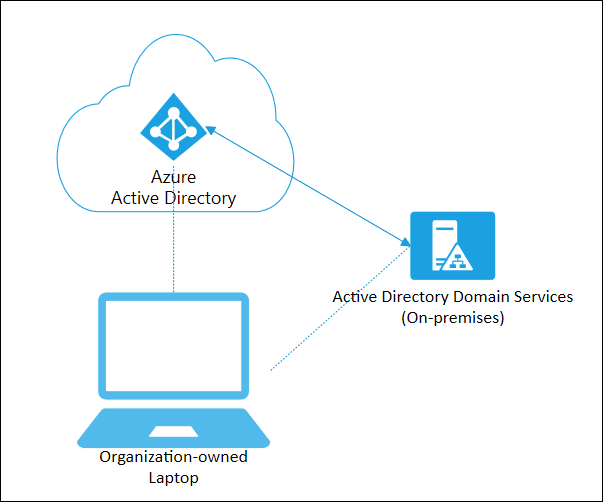
You use these domain services without the need to headaches of having to manage, deploy and patch a domain controller in the cloud. Azure AD DS integrates with your existing AD tenant which makes it possible for users to sign in using their existing credentials. You can also use existing groups, and users accounts to secure access to resources which provides a smoother ‘lift-and-shift’ of on-premises resources to Azure.

Azure AD DS replicates identity information from Azure AD, so works with Azure AD tenants that are cloud-only, or synchronized with an on-premises Active Directory Domain Services (AD DS) environment. The same set of Azure AD DS features exist for both environments.

Azure AD DS offers alternatives to the need to create a VPN connection back to an on-premises AD DS environment or run and manage VMs in Azure to provide identity services. The following feature of Azure AD DS simplify deployment and management operations:

  • Simplified Deployment experience: Azure AD DS is enabled for your Azure AD tenant using a single wizard
  • Integrated with Azure AD: User accounts, group membership and credentials are automatically available from your Azure AD tenant.
  • NTLM and Kerboros Authentication: With support for NTLM and Kerboros authentication, you can deploy applications that rely on Windows-integrated authentication

Much like Azure AD, Azure AD DS can be used in a Hybrid environment to include integration with on-premises applications. Below is a video that goes into much more detail along with demo on Azure AD Domain Services!

I hope you enjoyed this blog! Keep an eye out on Twitter for #AzureSpringClean and stay tuned for much more amazing content this month!
Azure Back to School: Hybrid Identity, Hybrid Device and Hybrid Exchange — September 7, 2020

Azure Back to School: Hybrid Identity, Hybrid Device and Hybrid Exchange

Salaam, Namaste, Ola and Hello!

Welcome to the 7th September instalment of the ‘Azure Back to school’ month. This is another great initiative setup by Dwayne Natwick (@DwayneNcloud) to share various topics with the community on all things Azure. My blog for this is around Azure Hybrid Identity, Hybrid Device and Hybrid Exchange. You can follow the whole month using the #AzureBacktoSchool on twitter and also on the following link: https://azurebacktoschool.tech

I have done a lot of projects in the last 12 months for customers where they are starting there cloud journey, and rather than going ‘all or nothing’, they are taking a hybrid approach and using on-premises services along side cloud services.

In this blog I am going to go discuss Azure Hybrid options available from a SaaS (Software as a Service) perspective and how best to configure them. The three main areas I touch on will be:

  • Hybrid Identity (Azure AD and Active Directory on-premises)
  • Hybrid Device (Intune and Group Policy)
  • Hybrid Exchange (Exchange Online and Exchange on-premises)

Hybrid Identity: Hybrid Identity is where the user objects are stored and managed in Active Directory on-premises and synchronised to Azure AD. To achieve hybrid identity with Azure AD, one of three authentication methods can be used, depending on your scenarios. The three methods are:

  • Password Hash Synchronisation
  • Pass-through Authentication
  • Federation

All three methods are configured using Azure AD Connect tool which is traditionally installed on a domain controller within the on-premises Infrastructure. Password Hash Synchronisation is an extension to the directory synchronisation feature implemented by Azure AD Connect sync. You can use this feature to sign in to Azure AD services like Office 365.

Azure Active Directory Pass through Authentication provides the same benefit to Password Hash Synchronisation, however you would use pass through authentication if you want to enforce your Active Directory on-premises (Group Policy) password policy onto your users. There are some key benefits to using pass through authentication:

  • Great user experience
  • Easy to deploy and administer for the IT team
  • Secure as no passwords are stored in the cloud, only on-premises
  • Can be highly available by installing multiple agents on premises

Federation is where two or more domains have established trust between them. The level of trust can vary but typically includes authentication and authorisation.

You can federate your on-premises environment with Azure AD and use this federation for authentication and authorisation. This sign-in method ensures that all user authentication occurs on-premises. This method allows administrators to implement more rigorous levels of access control. As you can see, all three methods share a common theme, which is that the identity details and authentication process is controlled by the on-premises part of the hybrid setup

Hybrid Device: I have found recently that a lot of businesses want to start their journey into the cloud by utilising the MDM service available in Azure, which is Intune. The main issue with this has been that traditionally Group Policy is embedded for a lot of businesses and they use this to ensure all corporate Windows based machines follow the same security guidelines.

Since Intune has come into the picture as a Cloud MDM platform, it has slowly started to develop features that are also available in Group policy, but unfortunately no where enough for Intune to replace it. This is where having Hybrid device management allows you to have the best of both worlds. You can continue to manage devices with Group policy but also take advantage of some of the great features in Intune.

This specific feature is known as ‘Hybrid Azure AD Join’. User Azure AD Hybrid joined devices if:

  • You have Win32 apps deployed to these devices that rely on Active Directory machine authentication
  • You want to continue to use Group Policy to manage device configuration
  • You want to continue to use existing imaging solutions to deploy and configure devices.
  • You must support down-level Windows 7 and 8.1 devices in addition to Windows 10

When setting up your Infrastructure for Hybrid Azure AD join you need to ensure you have configured Azure AD connect for Hybrid devices as well as configuring Group policies to add specific URLs to Intranet Zone assignments and a Group policy to enable automatic enrolment. You then need to ensure that the machines you wish to be Hybrid Azure AD Joined reside in the Organisational Unit you link the various Group policies to. For a full list of prerequisites, have a read of this link: https://docs.microsoft.com/en-us/azure/active-directory/devices/hybrid-azuread-join-plan

Hybrid Exchange: In its standard default configuration there is no link between Exchange on premises and Exchange online. You cannot have mailboxes in both platforms using the same domain without some sort of Hybrid configuration.

A hybrid deployment enables the following features:

  • Secure mail routing between on-premises and Exchange Online organisations.
  • A unified global address list (GAL), also called a “shared address book.”
  • A single Outlook on the web URL for both the on-premises and Exchange Online organisations.
  • Mail routing with a shared domain namespace. For example, both on-premises and Exchange Online organisations use the @yourdomain.com SMTP domain.
  • Centralised mailbox management using the on-premises Exchange admin centre.

Some companies implement Exchange Hybrid when they are planning on migrating to Exchange Online from on premises Exchange via either a staged or cut-over migration method. A hybrid deployment involves several different services and components:

  • Exchange Servers
  • Office 365 subscription that includes Exchange online
  • Hybrid Exchange configuration wizard installed on-premises
  • Azure AD Authentication
  • Azure AD connect Synchronisation

A common mistake made when implementing Hybrid Exchange for migration purposes is that once the migration is completed you should decommission Exchange on premises. The reason this is a mistake is due to the fact that within this implementation you will have configured Azure AD synchronisation between Active Directory on premises and Azure AD, where the user objects stored in Active Directory are synchronised to the cloud.

In an on premises Exchange environment, Active Directory objects get a lot of information from Exchange servers, and in turn with the AD synchronisation process this is then sent to the identity objects in the cloud. If you decommission all your Exchange servers on premises, this automatically removes all Exchange attributes from the Active Directory account, which in turn will synchronise with Azure AD accounts which will have a massive impact on your email service. Therefore Microsoft recommend you should have at least one Exchange Server that stays on premises in a Hybrid setup.

Big thank you to everyone contributing this month and another big thanks to Dwayne for all his hard work putting this together.

Hope you find this helpful, if you would like any more information feel free to tweet me @shabazdarr or ask a question in the comments section below! Until next time, ‘IamITGeek’ over and out!

Azure Spring Clean: My top 10 Azure Security Best practices — February 21, 2020

Azure Spring Clean: My top 10 Azure Security Best practices

Salaam, Namaste, Ola and Hello!

Welcome to day 15 of the Azure Spring Clean ( https://azurespringclean.com/ )! Big thanks to Joe Carlyle (@wedoazure) and Thomas Thornton (@tamstar1234) for putting this learning initiative together! Today’s Azure Spring Clean post is on ‘My top 10 Azure Security best practices’

Before i get to the the good stuff, a quick point to make which is that the following list is my own opinion based on my experiences from my work and investigation into this subject matter.

Lets get this list started!!! In at No.10…

Number 10: Implement DDoS Protection & Mitigation

DDoS attacks have been around for a while and protecting your Cloud Infrastructure from this type of attack is something I feel is important. DDoS Protection brings massive DDoS mitigation capacity to every Azure region. You scrub traffic at the Azure network edge before it can affect the availability of your service.

The following features are available within the Azure DDoS Protection service:

  • Turnkey Defense
  • Adaptive tuning
  • Attack Analytics

No 9: Using Web Application Firewalls (WAF)

Web applications are increasingly targeted by malicious attacks that exploit commonly known vulnerabilities. SQL injection and cross-site scripting are among the most common attacks. Azure Web Application Firewall (WAF) provides centralized protection of your web applications from common exploits and vulnerabilities.

The following are some core benefits Azure Web application firewall (on Application Gateway) can provide:

  • Protect your web applications from web vulnerabilities and attacks without modification to back-end code.
  • Protect multiple web applications at the same time. An instance of Application Gateway can host of up to 40 websites that are protected by a web application firewall.
  • The Application Gateway WAF is integrated with Azure Security Center. Security Center provides a central view of the security state of all your Azure resources.
  • Associate a WAF Policy for each site behind your WAF to allow for site-specific configuration

The following are some key features of the Azure Web Application Firewall:

  • SQL-injection protection.
  • Cross-site scripting protection.
  • Protection against crawlers and scanners.
  • Detection of common application misconfigurations (for example, Apache and IIS).
  • Configurable request size limits with lower and upper bounds.

No 8: Have a Firewall strategy

When it comes to a Firewall strategy you have two main options:

  1. User Azure Native controls
  2. Use 3rd party Virtual appliances

Azure Native Controls include the Azure Firewall and Web Application Firewall (already mentioned). These offer basic security that is good in some scenarios, with a fully stateful firewall as a service, built-in high availability, unrestricted cloud scalability, FQDN filtering, support for OWASP core rule sets, and simple setup and configuration

3rd party Virtual Appliances normally have more advanced capabilities and are available from the Azure Market Place by 3rd party vendors (WatchGuard for example). Network virtual appliances in the Azure Marketplace include familiar security tools that provide enhanced network security capabilities. Configuration is more complex, but allows you to leverage existing capabilities, and skillets.

No 7: Define Clear lines of responsibility

In many many companies it is common to split IT into different teams (Network team, Server team and so on). I feel it is an important security practice to define responsibilities with in Azure in a similar and use ‘Role Based Access Control’ to give members of the IT team access to only the areas which relate to there job function. Ensuring these responsibilities are clearly defined ensures consistency which helps avoid confusion that can lead to human and automation errors that create security risk.

No 6: Monitor Azure Resources

It is important to constantly monitor your Azure Infrastructure and setup alerting to ensure you are made aware of any potential threats as they occur, rather than when it is too late. For me some key services which should be monitored are:

  • VMs on Azure (Windows, Linux, and Installed Applications)
  • Azure Container and Azure Kubernetes Services (AKS)
  • Azure SQL Database and Azure SQL Data Warehouse
  • Azure Storage Accounts
  • IoT Devices
  • On-premises servers (via Windows Admin Center

No 5: Multi-Factor Authentication for all standard users

In my experience this is something that is very often not implemented until businesses have actually been affected by a security incident. Its is very important to implement MFA for all standard users across the tenant for access to any Azure/Microsoft 365 resources.

I go into MFA in more detail in my ‘Azure Advent Calendar’ Blog ( https://iamitgeek.com/2019/12/06/azure-advent-calendar-azure-multi-factor-authentication-mfa/ ) and YouTube Video ( https://www.youtube.com/watch?v=thep3IYzg2k ).

No 4: Ensure all IT staff follow strict ‘Change Control’ process

This best practice is something that very few follow and it can lead to a lot of misunderstanding and confusion when issues arise. Cloud platforms like Azure and Microsoft 365 have made it much quicker to make what use to be time consuming changes much faster, however if these types of changes are not documented, vetted and controlled it can cause major security risks.

Implementing strict change control when looking to make charges to settings (such as VM security rules, or a Firewall rule), if the steps the change implementer are documented and approved by a change board before hand it is much easier for other people to investigate any issues the change might cause, or roll back further down the line if required.

No 3: Implement a strict password policy

With the emergence of MFA, regularly implementing password changes is no longer a requirement or best practice. Rather than getting users to change passwords, I feel its better to implement a longer more complex password and only change it once every 365 days. Also ensure simple passwords are prohibited from being implemented, as well as ensuring users cant repeat use similar passwords (for example the same word but with a 1 at the end of it).

No 2: MFA for all Admin users

Regardless of whether you implement MFA for standard users it is even more important to ensure your Admins all use MFA to secure there access to resources. Although a standard user getting hacked is still bad, having a user with elevated privileges compromised has even worse consequences as they have much wider access to key resources which could compromise a business much quicker.

All staff that have any type of Admin access should be using MFA for accessing resources. Also Microsoft themselves recommend having no more than 5 global admin accounts.

No 1: Monitor Security Score

Assign stakeholders to use Secure Score in Azure Security Center to monitor risk profile and continuously improve security posture. In my time using Azure and Office 365, I have seen all to often that businesses do not pay attention to the Secure Portal.

This portal is designed to give you tips and recommendations on how you can improve security within your tenant and compares your score to other similar sizes business to help you understand where your security posture sits against them.

Hope you find this helpful, if you would like any more information feel free to tweet me @shabazdarr or ask a question in the comments section below! Keeping following the Azure Spring Clean until the end of February for loads more great content!!

Microsoft Ignite 2019 – Day three — November 7, 2019

Microsoft Ignite 2019 – Day three

We are officially half way through the conference and if you have been following my previous two blogs posts this week you will have seen its been filled with a variety of things including sessions, discussions and keynotes!

Today I decided to change it up a little and go more ’hands on’ with some labs so decided to only schedule two sessions:

  • ‘Azure VMware Solutions’
  • – ‘Reaching for the cloud: Group Policy Transformation to MDM with Microsoft Intune’

My first session wasn’t until mid morning, so I decided to get in a bit earlier for some breakfast at the HUB as I did yesterday. The one bonus I have found at the event that I wasn’t expecting are the random conversations I have had with other attendees and just listening to their stories. I mentioned this in my last blog and today was no different as I heard perspectives from professional who work for a Christian charity, a kids network TV channel and a manufacturing company. They all had one thing in common which was they use Azure, and in some cases use similar services, yet come from totally different business enterprises. This networking and meeting people from different walks of life has so far been one of the highlights this week!

After breakfast it was time to get my first session of the day which was ‘Azure VMware Solutions’. This is a platform that was announced earlier this year and something I have unsuccessfully tried to get a trial of, so it was good to get a more in-depth understanding of it. The platform is designed for every type of workload:

  • Modern Apps
  • Business and Mission Critical services
  • Dynamic and scalable

According to Microsoft, 90% of VMware on-premises customers want to run VMware in the cloud and 63% of VMware customers also considering running in the cloud natively. These types of numbers are what has driven Microsoft and VMware to put there differences aside and provide Azure VMware solution and you can now run your VMware workloads natively in Azure.

A massive positive of this solution for me is that it lets VMware trained IT professionals utilise the skills they have honed over the years as its still managed via vSphere!! There are currently on 3 regions where this service is available, however 11 Azure regions will have this service by May 2020 which implies there is massive investment on this platform by Microsoft. The other concern around cloud platforms I hear a lot of is if they abide by certain standards like ISO and so on, and all standard certifications are also coming early 2020 so it will be a fully certified platform as well.

The second half of the session was demo based and it was great to see the compatibility with on premises VMware as well as Azure NetApp files.

My next session wasn’t until late afternoon, so I decided to get to the hub and have some fun with ‘Hands on Labs’. The first lab I decided to do was based around using Azure Migrate to move VMware workloads to Azure and was a great follow on from my session. Initially I found the lab really good, clear instruction and it just worked. Probably due to the early time I went but I didn’t have to wait for a seat either which was not the case later on.

The lab took around an hour to complete, mainly as I was trying to take my time and fully understand the steps was doing, rather than just blindly following them. Once id finished, I had a walk around and bumped into a few of the Microsoft Teams MVPs (Chris Hoard – @Microsoft365Pro and Adam Deltinger – @deltanr1) and had more great conversations about their own journey to becoming MVPs. When I first heard about the MVP program my initial thought was I really want to target becoming one…however the more I thought about, in my opinion this is not something you should really aim to become…don’t have it as an end goal. Contribute to the community because you enjoy helping others and if the MVP award comes its just a bonus, and hearing both Chris and Adams stories just backed up my own thoughts.

After lunch I decided to hit up some more labs, but unfortunately my experience was much different. Once I arrived, I had to wait for about 20 minutes for a spare seat. One criticism I have of the labs is there is so much demand but only a small number of seats…my recommendation for next year is increase the number of seats. When I finally got a seat I started to load my next lab which was going to be using Azure Site Replication to recover VMware workloads…or so I thought. For some reason it kept loading the wrong lab, and after about 30 minutes of the lab helpers trying to fix it they couldn’t so I had to abort.

‘These things happen’ I thought, so I decided to do another lab around Exchange Hybrid and making meeting room management simpler. This time the correct lab loaded, however it was very slow, buggy, crashed several times, and after an hour I decided to give up. One of the more disappointing aspects of this was that the technical helpers were not able to assist, and a lot of the time just shrugged their shoulders. The first and hopefully last bit of disappointment at the conference!

I decided I needed cheering up, so had a stroll around the HUB and took part in some of the interactive games which was really fun, including a game of Fuss ball against a robotic arm…which I lost as well as a few others.

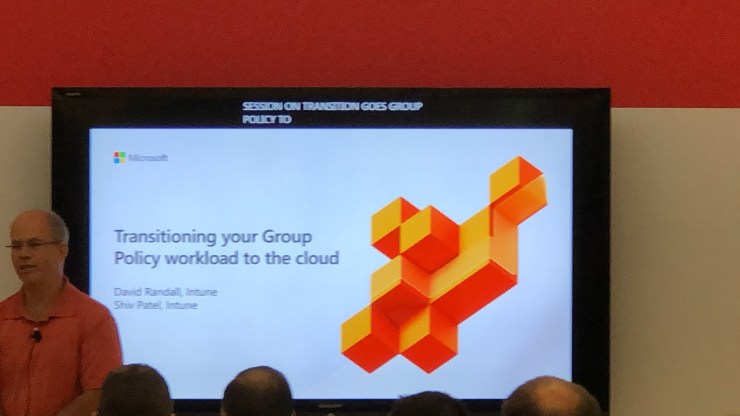
I moved onto my last session of the day ‘Transitioning your group policy workloads to the Cloud’. This is something I was intrigued to understand as I have wondered what is the best way to migrate on premises group policy to Intune. Intune MDM is great for Cloud only users, and even Hybrid users can take advantage of a lot of the features. According to Microsoft, customers face the following problems:

  • Policy Gaps: Legacy Group Policy settings are note supported by Modern Management
  • Feature Depth: Modern Management does not support Group Policy features
  • Enhanced targeting: Targeting with AAD Security Groups isn’t as rich as targeting in AD/GPO

Microsoft have the following approach to solve these problems:

  • Fill the gaps: Intune support CSE settings for example
  • Add new features: Intune policy analytics to assist with understanding current Group Policy landscape & MDM support for example
  • Give real world guidance: Practical case study-documented approach guides customers with proven plans and results in the transition for example

The session was shorter than most others I have sat in and ended with a short demo which unfortunately was more of an overview of some features rather than a deep dive.  This brought an end to day three.

Shabaz Darr is a Senior Professional Services Consultant at Concorde Technology Group in the UK. Shabaz’s primary responsibility is providing technical expert knowledge in both Cloud and Security to Concorde’s customers and partners. As an avid techie, Shabaz enjoys learning and working with new technology and can be found on twitter at @ShabazDarr https://www.linkedin.com/in/shabaz-darr-900b8361/ https://twitter.com/ShabazDarr

Microsoft Ignite 2019 – Day Two — November 6, 2019

Microsoft Ignite 2019 – Day Two

As I mentioned in my day one bloghttps://iamitgeek.com/2019/11/05/microsoft-ignite-2019-day-one/), I decided against packing that day full of sessions so I could get my bearings and take in a lot of the Hub as well as the main keynote talks. Day two was very much about sessions, with my main focus of the day being Security.

For those who follow me on social media (see the bottom of this post for the handles) you would have seen a sneak peak of some of the sessions, however I have said the juicy details for this blog post!

My planned sessions for today were:

  • ‘Protect your cloud workload from threats using Azure Security Centre’
  • ‘Secure your enterprise with strong identity foundation’
  • ‘Deep Dive into Azure policy and Governance’
  • ‘Top ten security practises in Azure today’

My first session wasn’t until mid morning, so I decided to grab some breakfast in the ‘HUB’ during which I had some amazing conversations with other people in the industry. One of the highlights and take a way’s from this week will definitely be listening to other IT professionals stories, and how they go about managing their customer base, as well as some of the products they use to do this.

One of the other great things about these type of conferences is you get direct, face to face time with the actual vendor engineers which is super helpful and allows you to ask questions around problems you are having with your own ongoing work. I managed to get some amazing information from the SharePoint team and the Intune App deployment team on some problems I am having on an ongoing project which I can take back with me to hopefully solve some issues.

After a very productive morning it was time for session on of the day: ‘Protect your Cloud workload form threats using Azure Security Centre’. The session was broken down into four areas of ‘Intelligent Security’ –

  1. Identity and Access Management
  2. Threat Protection
  3. Information Protection
  4. Cloud security

Microsoft believe the ‘Workloads are heterogenous and hybrid’ so its not only about protecting your cloud environment, you also need to protect the on premises environment. The most common threats Microsoft see are around the following:

  • Virtual Machines
  • Containers
  • App Services
  • SQL DBs
  • Storage Accounts
  • Key Vault

To help you manage all these different identities and services, Microsoft have totally re-vamped the Azure Security Centre which now includes the Office 365 Security score. Its now based on two main pillars:

  • Strengthening Security Posture
  • Protect against threats

For me the one area that really hit home was about ensuring you protect your VM workloads by reducing open network ports and protecting against malware, something I see issues with a lot in my role. New announcements was also becoming a regular theme and this session was no different with the announcement that Microsoft now offer built-in vulnerability assessments for VMs which is available as part of the standard VM pricing!

The session finished with another new announcement was new advanced protection capabilities for data services which is now in preview, which includes:

  • Protecting SQL servers on Azure VMs
  • Malware reputation screening for Azure storage
  • Advanced Threat Protection for Azure Key Vault

After a not so short walk I was at my second session of the day: ‘Secure your enterprise with strong identity foundation’. Although this wasn’t a very technical session it was very insightful into how much development Microsoft are actually putting into Azure AD, and how they actually see it as being more secure than Active Directory on premises.

The session touched on a number of different sub topics around identity management, one being getting to a world without passwords. For me this was a very strange concept as passwords have been present since the day I came into IT, however it is also one of the biggest vulnerabilities as well. How many times have you had to deal with security issue due to a brute force password attack?

The future for Microsoft appears to be based around bio metrics, including face recognition, finger print scanning and biometric key fobs. Now you might think these types of technologies have been around for a while, for example Windows Hello in Windows 10, as well as Banks using biometrics to login into Internet banking. The difference is rather than using these as and when, Microsoft want these to take over from the password, bringing of age a world without passwords!

Another take away from this session for me was around utilising Azure AD for all your 3rd party apps, not just Microsoft based apps, which is done via SSO (Single sign on) and Azure App Proxy. The session also touched on subjects including: –

  • Conditional Access and using smart protection policies and risk assessment to grant access
  • Azure AD Identity Protection
  • Self Service Password reset

After a short lunch break in the Hyatt Regency I was refuelled and ready for the third session of the day: ‘Deep Dive into Azure Policy and Governance’. It turned out that although very interesting, this session went a little over my head, mainly due to it being a lot of live demos using Azure Shell.

The most interesting part of the session for me was seeing the road map for Azure policy which includes:

  • Regulatory Compliance
  • Multi-tenancy support for Azure Lighthouse
  • Authoring and language improvement
  • Dataplane policy
  • Remediation for custom guest configuration policy
  • Continued partner integration

The final part of the session was around Azure Resource Graph and in what type of scenarios you can use it, as well as what’s new this year with this service

The Final session of the day was ‘Top ten best security practises for Azure today’ and a great way to finish off what was a great day two! For those who are familiar with Azure Security there were no real surprises, but for those who aren’t, according to Microsoft the following are a must if you want to keep your Azure resources secure:

  1. Operationalize Azure Secure Score. What they mean by this is assign stakeholders to use Secure score and monitor your score and continuously improve your security posture. Rapidly identify and remediate common security hygiene and setup regular reviews of the Azure Security score
  2. Administration – Account protection. This means password-less or MFA for all Admins
  3. Enterprise Segmentation and Zero trust preparation. Unify network, identity and app teams to align segmentation.
  4. Monitor for Attacks, including VMs on Azure, 3rd party VMs, Azure SQL DBs, Storage accounts and more.
  5. Applications – Secure DevOps
  6. GRC – Key Responsible parties. Ensure there are clear lines of responsibility within your team on network security, network management, server endpoint security, policy management and identity security & standards
  7. Networks and Containers. This is the Internet and Edge security and ensuring you are using some type of firewall
  8. Applications – WAF. Use web app firewalls on all internet facing applications
  9. Network and Containment – DDoS mitigations
  10. Network – Deprecating legacy technology

This brought an end to day two of the Microsoft Ignite Conference, stay tuned for update through out day three and more blog posts!

Shabaz Darr is a Senior Professional Services Consultant at Concorde Technology Group in the UK. Shabaz’s primary responsibility is providing technical expert knowledge in both Cloud and Security to Concorde’s customers and partners. As an avid techie, Shabaz enjoys learning and working with new technology and can be found on twitter at @ShabazDarr https://www.linkedin.com/in/shabaz-darr-900b8361/ https://twitter.com/ShabazDarr

Azure Autopilot with Intune – Part Two — April 11, 2019

Azure Autopilot with Intune – Part Two

Salaam, Namaste, Ola and Hello!

For those new to the blog welcome, and to those returning a big thanks! In part one of this series on ‘Azure Autopilot with Intune’ (https://iamitgeek.com/?p=123) I discussed what the Autopilot Service is, prerequisite requirements for this service and finally how to set it up.

In part two of the series I will now go through some of the user experience when logging onto a device that is added to the Autopilot Service as well as some features around the Intune profile you can setup to help manage the Windows 10 devices. As I have mentioned in previous blogs, I will be doing a separate series around ‘Intune Application deployment’ as its too big a topic to include here even though it has a big part to play with the Autopilot service.

Before any user’s login we really need to ensure that the device will be secure for them to use. Security of the device is controlled through the ‘Device Compliance’ section on the Intune portal and in here is where you can create policies for the different device types (Windows, Android, MAC and so on).

Device Compliance

If you click on Policies > Create Policy, you can create your platform specific compliance settings your devices must meet to be allowed access to your corporate network. In this instance we need a Windows 10 compliance policy, however those who are familiar with the blog post I did on ‘Samsung Knox Enroll with Intune integration’ will see the settings you can configure for Windows 10 devices are very similar.

Policy Settings

We have the Setting section which has:

  • Device Health
  • Device Properties
  • Configuration Manager Compliance
  • System Security
  • Windows Defender APT

Device Health: Here you can configure if Bit locker encryption and Secure boot are required or not. Device Properties: You can specify the minimum and maximum OS level on your Windows devices. This isn’t really as significant as it is for mobile phone devices, however you may have an application that can only run on a specific build of Windows 10, so with this part of the policy you can ensure your devices meet that requirement. System Security: Here we configure the password requirement settings, including Password length, maximum minutes of inactivity, number of previous password and password type to name a few. Windows Defender APT settings are specific to Windows 10 and it lets you specify what minimum risk level the device needs to be at to be compliant. The final and in my opinion the most important setting is ‘Actions of non-compliance’ which defines what actions need to be taken for devices that do not meet the compliance policy requirements. The two actions around this are ‘Send email to end user’ or ‘Remotely lock the non compliant device’.

End User experience : After the compliance policy is set you are now in a position for the end users to login. The great thing about Autopilot service is that it allows the end user to have that out of box experience (OOBE) where they can remove the laptop from the original packaging and box as if they have just been out and purchased the laptop themselves, rather than have it handed over from IT with little marks on it from where IT have been using it to install the OS and configure the apps. The end user will need to choose the language, time/date, accept the license agreement and connect it to the Internet (via Wi-Fi). Once this is connected to the Internet the device makes that connection with the Autopilot service which already knows about this device as we imported it right at the start. It then loads a company specific login page that you can configure within Azure which includes your company name, logo and IT support contact details. The user then logs in with their corporate email address and Autopilot starts to install the compliance policy as well as any apps you have provisioned. The beauty of this is that there is no or very little management needed from IT, and rather than spend time on deploying devices, they can spend time working on the compliance and applications side.

That concludes my blog series on Autopilot with Intune folks, I hope you enjoyed this series and I would love to know what you thought so please feel free to leave a comment in the comments section. Until next time, ‘IamITGeek’ over and out!