Samsung Knox Enroll with Azure Intune MDM – Part 1 — April 1, 2019

Samsung Knox Enroll with Azure Intune MDM – Part 1

Salaam, Namaste, Ola and Hello!

On this weeks ‘IamITGeek’ blog series I will be taking a in-depth look at Samsung Knox Enroll and how it integrates with Azure Intune to enroll & manage Samsung devices, as well as some of the cool ways in which you can utilize Azure Intune to deploy applications and security profiles to your mobile devices.

Samsung Knox Enroll: Samsung have a number of different services within the Knox suite including Knox Configure which allows you to configure profiles for devices and Knox Manage which is there full MDM solution. As with most third party MDM solutions they have a cost associated with them, however for existing Microsoft Intune customers you can utilize Knox Enroll which is a free service that allows you to automate the enrollment of Samsung (Android devices) into the Azure Intune MDM platform.

Before I used Knox Enroll, my previous experience with enrolling devices into Intune was manual and included having to download the Corporate Intune app from play store. In this blog i will take you through the integration of Samsung Knox Enroll with Intune which removes this obstacle, as well as how to deploy applications and security profiles to the devices from Intune once they are enrolled (In part two of this series).

Before you can configure the integration between Knox Enroll and Intune you need to first signup to Samsung Knox which is a relatively straight forward process. The only slight frustrating part of this is that you have to apply for the Enroll service which can take 2-3 days to go through. Once you are past that you are into the dashboard.
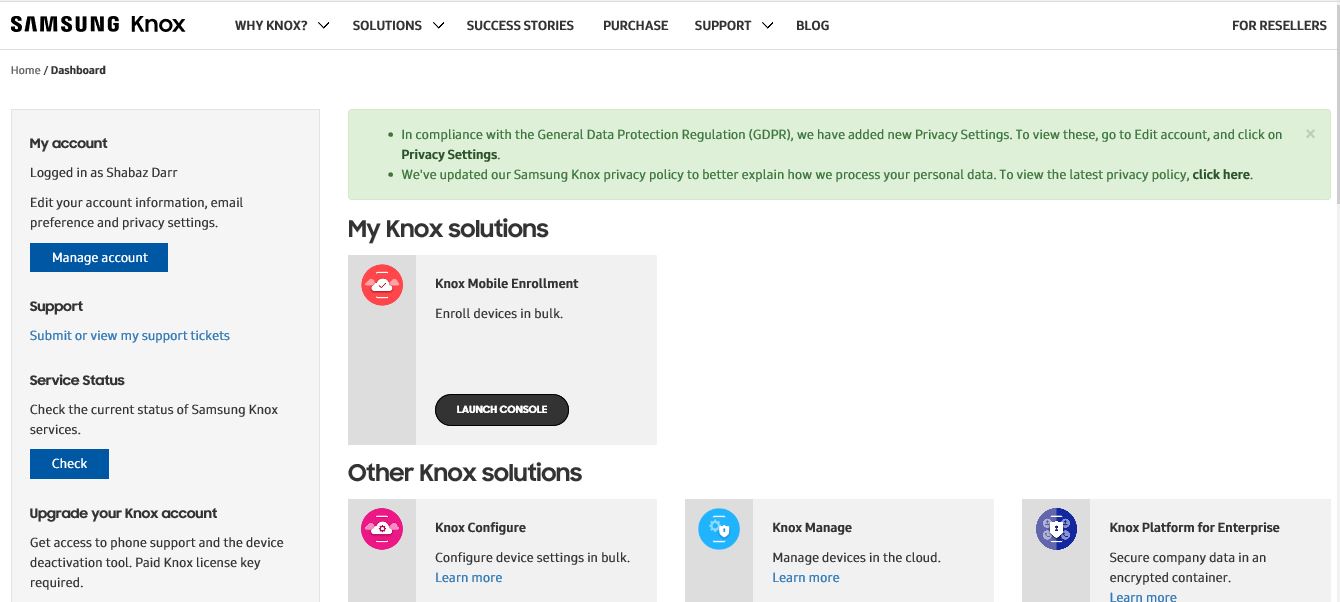
Samsung Knox Dashboard

As you can see from the image above once in the Dashboard you can start to access a number of services, some of which I mentioned earlier. Once in the Knox Mobile Enrollment Console you need to create an MDM profile. In this section we are basically configuring the integration with Intune which will allow for the auto enrollment into the MDM.

At this point I found the documentation available around configuring Knox Enroll profile with Intune was very poor and it took a lot of searching around various articles to find the correct information. After some trial and error the following fields were required to get the integration to work:

  • Profile name
  • Support Contact Details
  • MDM agent APK

The Profile name and support contact are very self explanatory, but the key is the MDM agent APK. This basically points Samsung Knox Enroll to the apk file for Azure Intune in the app store, which means the end user does not have to manually download it. At this point the slight confusion for me was not having to use the MDM uri, and looking for this originally did waste a lot of time. As I mentioned there does not seem to be much in technical documentation around how to set this up, where as there is a lot of information around an overview of the product and integration.

You will now need to add your device into the Samsung Knox portal. There are two methods around this:

  • Get a reseller to bulk add devices
  • Add a single device via Bluetooth

There is a section within the Admin console you can add a reseller which will then allow them to bulk add devices to your Samsung Knox portal. This method is more relevant if you are doing a mass roll out, however for the purpose of this blog I used the Bluetooth method which was straight forward and done via KDA (Knox Deployment App). This is a free download via the play store, however you need to make sure the following are in place before you can use this feature:

  • Must have a Samsung Knox Enroll login
  • Devices must support NFC or Bluetooth
  • Must have at least one profile configured in Samsung Knox Enroll

Once the device is added to the portal you can assign it the relevant profile which will then allow the enrollment into Intune process start. From a user perspective/experience, when they power on there device they will see a splash page which will show the support details we configured in the MDM profile earlier as well as a login prompt where they will need to use there Corporate Email details (Office 365/Azure) which will then add the device into the Intune MDM where the device will start to download any apps and security profiles configured within Azure.

That is it for part one folks, keep an eye out for part two where I will discuss some of the features around app deployment and security profiles within Intune that can be deployed to Samsung phones and how to do this. Until next time, ‘IamITGeek’ over and out!

Azure IaaS – Part 2 — March 25, 2019

Azure IaaS – Part 2

Salaam, Namaste, Ola and Hello!

For those who are new to the blog welcome, and for those returning a big thanks! In my last blog ( https://iamitgeek.com/2019/03/20/azure-iaas ) I set the scene for a project I had recently where I was working with a customer who was unhappy with there on premises Infrastructure and had a set of requirements which I believed made them ideal for an Azure IaaS based platform.

I ended the first part of this two blog series at the point of implementing the proof of concept.  You may notice a pattern with most of the work I do in that where possible I look to do POC’s, and the main reason for it is to give the customer a feel and understanding of what the final platform will look like.  It gives them the confidence that what I am proposing works and is also a great way to iron out any issues before going live!  As I mentioned in the previous blog the POC consisted of an Azure VNET, an IPSEC site-to-site VPN from Azure to the customers on premises Infrastructure, two Azure VMs (Domain Controller/File Server and RDS server) along with a small Office 365 tenancy.  We decided to implement the POC for staff only as we wanted to avoid causing any further disruption to the students.

Staff were able to utilise their existing thin clients and connect to the Azure based RDS instance via the site-to-site VPN on which we provisioned a set of pre-defined applications.  With the addition of email being hosted in Office 365, the platform was fully cloud based.  The feedback was 100% positive in that users were not having any of the same issues and pains that they felt with the current on premises Infrastructure.

Don’t get me wrong, it wasn’t smooth sailing all the way!  We had to ensure the POC was as realistic as possible, so getting the customers application base working within Remote Desktop Services was a challenge and required us to work with 3rd party vendors of the apps to get them fully functional.

Once the POC was completed and signed off it was time to spec the live platform and get the solution priced up.  One of the better pricing tools is the ‘Azure Calculator’ which made putting the specs and pricing together quick and easy!  Due to the nature of this requirement that the resources required were pretty static, we decided to go with the Reserved Instance pricing model which reduced the monthly cost by 70% making the solution even more appealing to the customer.  “But with the Reserved Instance model you have to pay upfront for the instance so isn’t monthly billing” I hear you say?  Reserved Instances are available with monthly billing on a CSP platform which is something we were able to offer this customer!

Due to the state of the on premises Infrastructure rather than migrate the domain we provisioned a new domain and migrated the only the data.  This meant new AD accounts, new NTFS permissions and whole new beginning for this customer!  We used a 3rd party tool to migrate the email (a topic I will be blogging about very soon!) from the Exchange 2007 and Office 365 which was again seamless!

Since the platform went live last year the customer has given great positive feedback and has even agreed for us to do a case study on there story!

Thanks for reading, I hope you enjoyed this two part blog of my experience with Azure IaaS  implementation/migration! Until next time, ‘I am IT geek’ over and out!

Azure IaaS – Part 1 — March 20, 2019

Azure IaaS – Part 1

Salaam, Namaste, Ola and Hello!

For those new to the blog welcome and to those who are returning a big thanks! This next series of blogs will be around Azure Infrastructure as a Service (IaaS) and specifically a project I was technical lead on around a migration from on premises Infrastructure to Azure IaaS.

Setting the Scene  – unfortunately this all came around due to an unhappy customer.  We have all been there and as I am sure any IT professional will agree an unhappy customer is not a great situation to be in.  This particular customer was a small educational institute with only about 30-40 users but close to 60 students.  The current Infrastructure consisted of two physical hosts, one with Hyper-V which hosted a few virtual machines including Domain controller, Exchange 2007, RDS and another physical file server.  Both staff and students used thin clients to connect to Remote Desktop services. Everything about the current solution was not right, with ageing hardware and a licensing model which was causing them more headache.

Now with a lot of these situations you would think this is easy…just upgrade the existing Infrastructure on premises and the jobs done! However there were many more factors to take into account, such as the customer had no local IT support to deal with issues when hardware onsite needed looking at or users needed help.  Other factors, and one of the biggest ones included budget, and wanting an Opex pricing model rather than a Capex model.

Around about the time the customer was having all these issues, I was spending a lot of lab time on Azure IaaS, in particular the compute and storage aspects when I had the light bulb moment…Azure IaaS is prefect!

I mean think about it…it takes away the headache of having hardware onsite, so with no local IT in place management becomes easy!  Azure IaaS is also monthly billing which meant no upfront investment and was ideal for the pricing model they wanted.

I took it upon myself to create a demo that consisted of an Azure VNET, an IPSEC site-to-site VPN from Azure to the customers on premises Infrastructure, two Azure VMs (Domain Controller/file server and RDS server) along with a small Office 365 tenancy and presented this to the customer.  The reaction and feedback was overwhelmingly positive, and we decided to put it in place as a POC for 10 users.

Azure IaaS – POC Overview

To find out how that went, along with how the Implementation and Migration went you will need to keep your eyes peeled for Part two of this series, so until next time, ‘I am IT geek’ over and out!

Azure Active Directory Migration – Part 2 — March 17, 2019

Azure Active Directory Migration – Part 2

Salaam, Namaste, Ola and Hello!

Welcome citizen to the ‘I am IT Geek’ blog!  This is part 2 of my experience with Azure Active Directory Migration a few years ago.

In part one I set the scene and explained how we ended up with Azure AD as the solution to meet this customers requirements, but all this was still theory.  Due to this technology being relativity new at the time, the customer wanted a Proof of Concept (POC) setting up and then to test with live users.  The main purpose of this was to enable us to document the migration process but at the same time iron out any potential issues before the mass migration to over 300 users.

Before POC could take place I needed to ensure the back-end Azure and Intune was setup correctly.  With this particular customer, as they already used Office 365, SharePoint online and Sky for Business, the Azure Active Directory was already setup and working.  The Intune setup was simple enough: Enable Intune via Azure AD, Create a Security Group for the Intune policy and assign the relevant users to this group and finally configure the Intune Policy.

Currently the Intune policy options are what I would call ‘Basic’ as you only really have a handful of security like settings (password length, Password type, password lockout etc).  At the time of writing this Intune is very much in it’s infancy but knowing Microsoft it will be a service that will develop very quickly.

With the basics of the policy completed there was some final testing to complete around profile migration, which ended up being the trickiest part.  The main reason for this being a requirement was that when you add a Windows 10 device to the Azure Domain it creates a new blank profile, much like it would if you were to add the any on premises domain.  In the end we found a great tool called ‘ForensiT User Profile Wizard’ which basically migrated the old local profile into the new Azure AD profile.  The slight caveat to this was that it did not migrate Google password store as this is encrypted, but logging into Google with the users gmail account got round this issue.

The POC was a massive success with the group of test users being migrated seamlessly and once migrated saw no difference in there daily work which was a massive positive.  In a way that is always a massive aim with any type of migration…make the impact to users as little as possible!

Due to the size of the migration being so wide (offices all over the world), my scope was to roll out Azure AD to the UK based users and provide documentation to allow the Global Infrastructure team to slowly migrate the global users onto the platform.  The main migration was a massive success which was all down to the careful planning, testing and documentation done in the build up.

Since the migration I have worked with the customer to implement Single sign on for 3rd party apps via Azure including SalesForce as well as deploying applications via Intune which just shows how they are embracing the platform!

Thanks for reading, I hope you enjoyed this two part blog of my experience with and Azure AD implementation/migration! Until next time, ‘I am IT geek’ over and out!

Azure Active Directory Migration – Part 1 —

Azure Active Directory Migration – Part 1

Salaam, Namaste, Ola and Hello!

Welcome to ‘I am IT geeks’ first technical blog!!  As i explained in my introduction i will be blogging about my own experiences working in the IT industry.  The first experience i will be talking to you about today is a recent Azure Active Directory migration i managed for a customer who is based in the Financial sector.

Setting the Scene – This particular customer was already using Office 365, SharePoint online and Skype for Business in addition to a Cloud based VOIP system, so you could say they were already big fans of ‘The Cloud’.  The issue they had was that every user laptop was on its own work group! That’s right citizen…in 2017 there are people still in work groups….even multi million pound corporations!  With GDPR fast approaching the customer needed a solution that would allow them to secure and manage devices whilst ensuring they are compliant….Enter Azure AD!

The initial discussions we around putting in a VM within Azure and promoting this to a Domain Controller, however i soon came to the conclusion that this was not going to be the right solution.  This particular customer is a Global Financial Consultants so have lots of small offices around the globe.  To make the Domain Controller VM in Azure work it would have required a Site-to-Site VPN from Azure to each office location they wanted to utilize which would mean a lot of management overhead.

AzureVM

As you can see it looks simple enough from a high level overview as above, but the issues i found were more specific.  For example the Azure VPN has a list of supported Firewall/Router vendors and model’s, however that does not mean it wont work with ones that are not on the list.  Unfortunately for me this customer had different routers at each site, which again added to the management overhead.  Another stumbling block was the number of Site-to-Site VPNs that were supported.  In this case we were using the Basic S2S VPN which supports a maximum of 10, however the number of remote offices exceeded this.

I was quickly realizing that i needed a plan B which I found in the form of Azure AD!  Not only did it solve the problems the S2S VPN was providing, but with the addition of a Enterprise Mobility & Security license it opened up a whole new range of possibilities to the customer.  With the EM&S license, all the sudden Single Sign on to 3rd party apps like Slack, DropBox and Sales Force was possible.  Multi Factor Authentication was no longer a pipe dream. And the cherry on top of this Azure cake was Azure Intune and its MDM feature, allowing the customer device management, auditing and reporting that was previously not available.

AzureAD

With GDPR just around the corner Azure Intune was a key factor in the customer deciding to deploy Azure AD and EMS across the business….however citizen you will need to wait for part 2 of this blog to see how the migration went so until next time, ‘I am It Geek’ over and out!