Backup & Recovery of Microsoft 365 with Veeam (SaaS) — April 26, 2021

Backup & Recovery of Microsoft 365 with Veeam (SaaS)

Salaam, Namaste, Ola and Hello!

This blog post is based on a video I did a few weeks back which you can find below incase you prefer video content. In 2021 I am going to make a more conscious effort to vlog and blog about 3rd party vendors like VMware, NetApp, and Veeam and how they integrate with Microsoft Cloud services. The first series I have started this year is all around Veeam integration with Microsoft Cloud and you can catch my Introduction video below:

This specific blog will focus on ‘Backup & Recovery of Microsoft 365 with Veeam SaaS Workloads’ and I will discuss the following areas:

  • Veeam Backup for Microsoft 365 Overview
  • Features
  • Requirements

Veeam Backup for Microsoft 365 Overview

This specific Veeam service is focused around backing up Microsoft SaaS workloads including: Exchange Online, SharePoint Online, OneDrive and Microsoft Teams. It allows you to uniquely back up your data weekly, daily or as often as every five minutes if you wish to do so.

You can then store these backups in the location of your choice, including on-premises, in a hyperscale public cloud (Azure Storage or AWS Storage) or with a local service provider. The quick search and granular recovery of individual objects, including Microsoft Teams data – allows organisation’s to mitigate risk and allow a better service to its users so they can get their data back quickly.

Without an easily accessible copy of our data, retrieving emails for regulatory or compliance reasons can be costly, time-consuming and a major disruption to any business. When using Veeam Backup for Microsoft 365, you can leverage the familiar advanced search capabilities, flexible recovery and export options to perform eDiscovery on Microsoft 365 data just as easily as you would with a traditional on-premises data backup.

Veeam Backup for Microsoft 365 – Features

This service has some cool features, including a lot that you already find with other Veeam services, but also includes:

Multiple Deployment options:

  • On-premises deployment: For customers who want to have a terrestrial backup copy of Microsoft 365 data, an  on-premises deployment is the best option because it has the ability to scale-out from simple to advanced  installations. This kind of deployment provides the flexibility required by an organization that uses Microsoft 365 hybrid deployments where the protected data resides within any combination of online and on-premises Microsoft Exchange, SharePoint and OneDrive for Business infrastructures. 
  • Public Cloud Deployments: For customers who have an existing footprint in the public cloud (Azure or AWS) or for those who want to host the Infrastructure in a separate Data Centre, a deployment can operate form any public cloud and provide a complete cloud-agnostic approach. Azure Marketplace requires the customer to enter the details of the Microsoft 365 tenant you want to backup, and in general, data can be directly stored into Azure Managed disks. As of Veeam Backup for Microsoft 365 v4, Blob storage can also be achieved through ‘extended backup repositories’ which uses Microsoft Storage offerings.
  • Service Providers for a single-tenant (Exclusive mode): Veeam Cloud & Service Providers (VCSP) may offer the option to access a dedicated Veeam Backup for M365 Infrastructure that is exclusive to the clients single tenant. In this configuration, the single tenant allows the service provider to access, backup and restore content on their behalf and the customer typically uses the service provider infrastructure to protect their Microsoft 365 data and the assigned storage from the service provider as a repository for their own data. If the customer has a hybrid configuration of Microsoft Exchange and SharePoint to protect, it is required that the customer provides the FQDN of the respective on-premises Exchange and SharePoint servers to the service provider and to allow connectivity to these servers from their side. To a certain degree, the service provider for single-tenant and on-premises deployment are very similar.
  • Service Providers for Multi-tenant (Shared mode): VCSP’s can host and integrate the Veeam server deployments with existing Veeam Cloud Connect Infrastructure. In this scenario, a VCSP can use a single backup server deployment in multi-tenant mode, which means all backup data and repositories are separated and the customers can use Veeam Cloud Connect gateways to securely access and recover content. In this case, the customer has no control over the backup server which is stored on the service provider side. Customers can use Veeam Explorer for Microsoft Exchange, SharePoint and OneDrive for Business in their in-premises environment to restore data form backup stored in the service provider hosted storage. With this configuration, the service provider has visibility into all configured Microsoft 365 tenants and single tenants have no visibility into other tenant instances that share the same platform. Tenants can only access their own data from the backup jobs that the service provider has created for them.

As well as these deployment options, Veeam backup for Microsoft 365 can also backup all Exchange online objects like mail items, calendar items, contacts, notes and tasks. you can then restore directly to the mailbox, to a PST or to a different mailbox. You can also use Veeam Explorer for Exchange to browse mailboxes and recover single items. The same features are available when backing up SharePoint Online, OneDrive for Business and Microsoft Teams.

Requirements

There are several requirements around Microsoft Exchange, SharePoint, the Veeam backup server and the proxy server:

  • Microsoft Exchange Org requirements: You need to ensure you have Microsoft Exchange online or Microsoft Exchange Server 2019, 2016 or 2013 (on-premises).
  • Microsoft SharePoint Org requirements: You need to ensure you have SharePoint Online or SharePoint Server 2019 or 2016.
  • Veeam Backup for M365 Server: There are hardware, OS and Software requirements which you can see in the table below:
SpecificationRequirement
HardwareThe following hardware is required:
•CPU: any modern multi-core x64 processor, 4 cores minimum.
•Memory: 8 GB RAM minimum. Additional RAM and CPU resources improve backup, restore and search performance.
•Veeam Backup for Microsoft Office 365 also requires a minimum size of 8GB of RAM for VMs with dynamic memory allocation.
•Disk Space: 500 MB for product installation and additional free space for the configuration database (depending on the amount of organizations, jobs and sessions) and product logs.
OSOnly 64-bit version of the following operating systems are supported:
•Microsoft Windows Server 2019, Microsoft Windows Server 2016, Microsoft Windows Server 2012 R2, Microsoft Windows Server 2012, Microsoft Windows Server 2008 R2 SP1, Microsoft Windows 10, Microsoft Windows 8.x, Microsoft Windows 7 SP1
SoftwareThe following software is required: •Microsoft .NET Framework 4.7.2 or higher.
•Windows C Runtime and Update (UCRT) in Windows.
•To use PowerShell cmdlets for backup and/or restore, Windows PowerShell 2.0 or higher is required. When using Windows 2012 or 2012 R2, Windows PowerShell 2.0 Engine must be installed regardless of the current PowerShell version.
Veeam backup for Microsoft 365 requirements
  • Veeam Backup Proxy Server: There are hardware, OS and software requirements which you an see in the table below:
SpecificationRequirement
HardwareThe following hardware is required:
•CPU: any modern multi-core x64 processor, 4 cores minimum.
•Memory: 8 GB RAM minimum. Additional RAM and CPU resources improve backup, restore and search performance.
•Veeam Backup for Microsoft Office 365 also requires a minimum size of 8GB of RAM for VMs with dynamic memory allocation.
•Disk Space: 300 MB for product installation and additional free space for the configuration database (depending on the amount of organizations, jobs and sessions) and backup proxy logs.
OSOnly 64-bit version of the following operating systems are supported:
•Microsoft Windows Server 2019, Microsoft Windows Server 2016, Microsoft Windows Server 2012 R2, Microsoft Windows Server 2012, Microsoft Windows Server 2008 R2 SP1, Microsoft Windows 10, Microsoft Windows 8.x, Microsoft Windows 7 SP1 Proxy Servers can be deployed to the following core editions:
•Microsoft Windows Server 2019, Microsoft Windows Server 2016 LTSC, 1709, Microsoft Windows Server 2012 R2
SoftwareThe following software is required: •Microsoft .NET Framework 4.7.2 or higher.
•Windows C Runtime and Update (UCRT) in Windows For a machine used as a workgroup backup proxy, the following settings are required:
•The Remote registry service must run on the target machine.  The service start-up type must be set to Automatic •Windows Firewall must be turned off on the target machine
Veeam Backup Proxy Server Requirements

Finally you can find a video of my doing a demo of the Veeam Backup for Microsoft 365 in the video below:

I hope you enjoyed this blog and find it useful. If you have any questions please leave me a comment or hit me up on my twitter handle which is @shabazdarr.
Azure Back to School: Hybrid Identity, Hybrid Device and Hybrid Exchange — September 7, 2020

Azure Back to School: Hybrid Identity, Hybrid Device and Hybrid Exchange

Salaam, Namaste, Ola and Hello!

Welcome to the 7th September instalment of the ‘Azure Back to school’ month. This is another great initiative setup by Dwayne Natwick (@DwayneNcloud) to share various topics with the community on all things Azure. My blog for this is around Azure Hybrid Identity, Hybrid Device and Hybrid Exchange. You can follow the whole month using the #AzureBacktoSchool on twitter and also on the following link: https://azurebacktoschool.tech

I have done a lot of projects in the last 12 months for customers where they are starting there cloud journey, and rather than going ‘all or nothing’, they are taking a hybrid approach and using on-premises services along side cloud services.

In this blog I am going to go discuss Azure Hybrid options available from a SaaS (Software as a Service) perspective and how best to configure them. The three main areas I touch on will be:

  • Hybrid Identity (Azure AD and Active Directory on-premises)
  • Hybrid Device (Intune and Group Policy)
  • Hybrid Exchange (Exchange Online and Exchange on-premises)

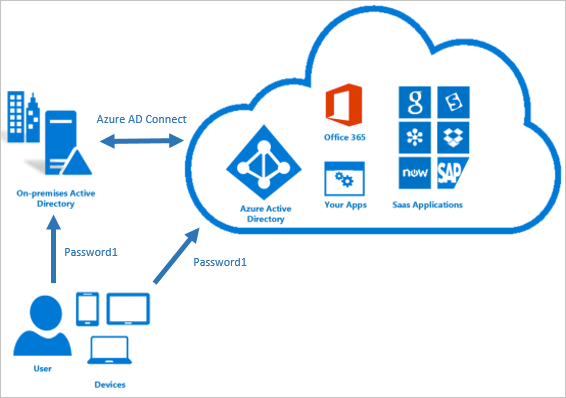
Hybrid Identity: Hybrid Identity is where the user objects are stored and managed in Active Directory on-premises and synchronised to Azure AD. To achieve hybrid identity with Azure AD, one of three authentication methods can be used, depending on your scenarios. The three methods are:

  • Password Hash Synchronisation
  • Pass-through Authentication
  • Federation

All three methods are configured using Azure AD Connect tool which is traditionally installed on a domain controller within the on-premises Infrastructure. Password Hash Synchronisation is an extension to the directory synchronisation feature implemented by Azure AD Connect sync. You can use this feature to sign in to Azure AD services like Office 365.

Azure Active Directory Pass through Authentication provides the same benefit to Password Hash Synchronisation, however you would use pass through authentication if you want to enforce your Active Directory on-premises (Group Policy) password policy onto your users. There are some key benefits to using pass through authentication:

  • Great user experience
  • Easy to deploy and administer for the IT team
  • Secure as no passwords are stored in the cloud, only on-premises
  • Can be highly available by installing multiple agents on premises

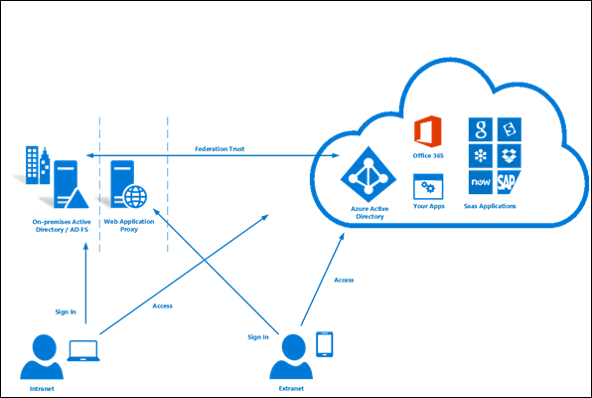
Federation is where two or more domains have established trust between them. The level of trust can vary but typically includes authentication and authorisation.

You can federate your on-premises environment with Azure AD and use this federation for authentication and authorisation. This sign-in method ensures that all user authentication occurs on-premises. This method allows administrators to implement more rigorous levels of access control. As you can see, all three methods share a common theme, which is that the identity details and authentication process is controlled by the on-premises part of the hybrid setup

Hybrid Device: I have found recently that a lot of businesses want to start their journey into the cloud by utilising the MDM service available in Azure, which is Intune. The main issue with this has been that traditionally Group Policy is embedded for a lot of businesses and they use this to ensure all corporate Windows based machines follow the same security guidelines.

Since Intune has come into the picture as a Cloud MDM platform, it has slowly started to develop features that are also available in Group policy, but unfortunately no where enough for Intune to replace it. This is where having Hybrid device management allows you to have the best of both worlds. You can continue to manage devices with Group policy but also take advantage of some of the great features in Intune.

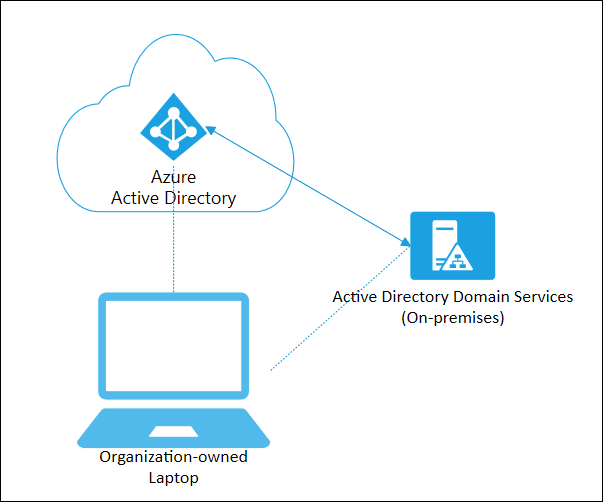
This specific feature is known as ‘Hybrid Azure AD Join’. User Azure AD Hybrid joined devices if:

  • You have Win32 apps deployed to these devices that rely on Active Directory machine authentication
  • You want to continue to use Group Policy to manage device configuration
  • You want to continue to use existing imaging solutions to deploy and configure devices.
  • You must support down-level Windows 7 and 8.1 devices in addition to Windows 10

When setting up your Infrastructure for Hybrid Azure AD join you need to ensure you have configured Azure AD connect for Hybrid devices as well as configuring Group policies to add specific URLs to Intranet Zone assignments and a Group policy to enable automatic enrolment. You then need to ensure that the machines you wish to be Hybrid Azure AD Joined reside in the Organisational Unit you link the various Group policies to. For a full list of prerequisites, have a read of this link: https://docs.microsoft.com/en-us/azure/active-directory/devices/hybrid-azuread-join-plan

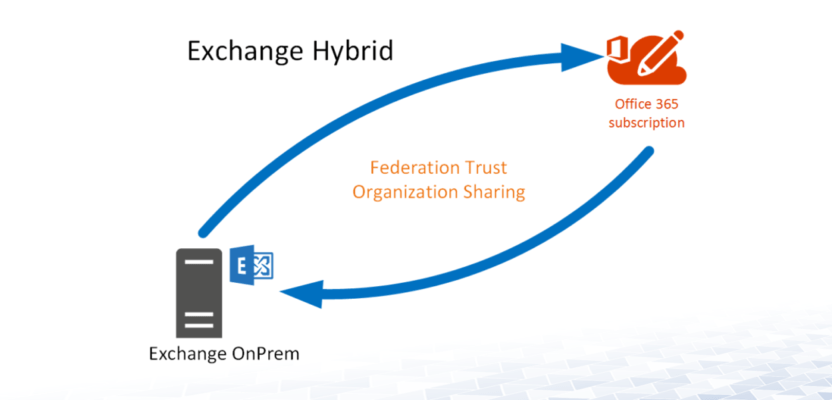
Hybrid Exchange: In its standard default configuration there is no link between Exchange on premises and Exchange online. You cannot have mailboxes in both platforms using the same domain without some sort of Hybrid configuration.

A hybrid deployment enables the following features:

  • Secure mail routing between on-premises and Exchange Online organisations.
  • A unified global address list (GAL), also called a “shared address book.”
  • A single Outlook on the web URL for both the on-premises and Exchange Online organisations.
  • Mail routing with a shared domain namespace. For example, both on-premises and Exchange Online organisations use the @yourdomain.com SMTP domain.
  • Centralised mailbox management using the on-premises Exchange admin centre.

Some companies implement Exchange Hybrid when they are planning on migrating to Exchange Online from on premises Exchange via either a staged or cut-over migration method. A hybrid deployment involves several different services and components:

  • Exchange Servers
  • Office 365 subscription that includes Exchange online
  • Hybrid Exchange configuration wizard installed on-premises
  • Azure AD Authentication
  • Azure AD connect Synchronisation

A common mistake made when implementing Hybrid Exchange for migration purposes is that once the migration is completed you should decommission Exchange on premises. The reason this is a mistake is due to the fact that within this implementation you will have configured Azure AD synchronisation between Active Directory on premises and Azure AD, where the user objects stored in Active Directory are synchronised to the cloud.

In an on premises Exchange environment, Active Directory objects get a lot of information from Exchange servers, and in turn with the AD synchronisation process this is then sent to the identity objects in the cloud. If you decommission all your Exchange servers on premises, this automatically removes all Exchange attributes from the Active Directory account, which in turn will synchronise with Azure AD accounts which will have a massive impact on your email service. Therefore Microsoft recommend you should have at least one Exchange Server that stays on premises in a Hybrid setup.

Big thank you to everyone contributing this month and another big thanks to Dwayne for all his hard work putting this together.

Hope you find this helpful, if you would like any more information feel free to tweet me @shabazdarr or ask a question in the comments section below! Until next time, ‘IamITGeek’ over and out!

Using MS Teams with on-premises Exchange — March 9, 2020

Using MS Teams with on-premises Exchange

Salaam, Namaste, Ola and Hello!

I have been working with a lot of customers in recent months who have a large on premises footprint but want to start the journey into using cloud services. In my experience, the first step tends to be migrating email services to Exchange online which gives the business the start of a new Hybrid Infrastructure.

Once users start adopting Exchange online features, one of the services that soon follow is Microsoft Teams and today I am going to detail a recent experience I had with a customer who has a massive Virtual Environment which includes a multi server Exchange on premises Org. They were looking to start their Cloud/Hybrid journey, however rather than Exchange Online, they wanted to look at integrating Microsoft Teams

Microsoft Teams is a cloud native app so the full feature set is supported when you have an Exchange Online mailbox. The scenario I had was an existing Exchange 2013 on premises org on the latest CU with no Microsoft 365 tenant and a customer wanting to look at adopting Teams for meeting rooms and collaboration.

Understand pre-requisites. We know what the end game is: Utilise Microsoft Teams and integrate this in a Hybrid environment. Knowing this, the next step is to document the pre-requisites which will allow us to get to that end goal, as this then helps understand our step by step process. The following are pre-requisites for integrating and using Microsoft Teams functionality in a hybrid environment:

  • Exchange 2016 Exchange Server (with CU 15 as a minimum)
  • Hybrid Exchange configured
  • Microsoft 365 tenant with relevant licenses
  • Hybrid Identity (identity object in Active Directory on premises and Azure AD)

As I mentioned earlier, the existing Exchange Org was 2013 so we needed to create a new Exchange 2016 Exchange Server into the existing Org and ensure it had CU 15 at least. At this stage the plan was to only migrate the internal IT Team to the new server to allow testing before rolling out Teams to the wider user groups. For full instructions and understanding on how to install Exchange 2016 I would recommend the following article: https://practical365.com/exchange-server/installing-exchange-server-2016/

Once we had the Exchange 2016 server integrated into the existing Exchange Org we needed to create and configure the Microsoft 365 tenant. Working for a MSP came in handy as we were able to provision this via the CSP platform and get tenant up and working fairly quickly. For full instructions and understanding on how to configure a Microsoft 365 tenant I would recommend the following article: https://docs.microsoft.com/en-us/microsoft-365/education/deploy/create-your-office-365-tenant . It does not cover the CSP element but does explain how to configure the.

We now have a working Microsoft 365 tenant and an on premises Exchange Org with a 2016 CU 15 server. We now needed to create the Hybrid configuration which in this case is both Identity and Exchange Hybrid.

To create the identity Hybrid we installed and configured Azure AD connect on one of the existing on premises domain controllers. I would recommend the following article: https://docs.microsoft.com/en-us/office365/enterprise/set-up-directory-synchronization . In this scenario we wanted ‘Password Hash Synchronisation and to enable Exchange Hybrid option in the utility.

Once the relevant identities were synchronising between Active Directory on premises and Azure AD we could install and configure the Hybrid Exchange wizard. This needed to be installed on the Exchange 2016 server and also required some public DNS record creations. I would recommend the following article: https://docs.microsoft.com/en-us/exchange/hybrid-deployment/deploy-hybrid. One of the important requirements of using Teams in a Hybrid environment is ensuring OAuth authentication is configured and working, and with Exchange 2016 the Hybrid Exchange wizard automatically configures this.

Once the above configuration was completed and in place we were able to deploy Microsoft Teams to a device and login with Office 365 credentials (synchronised with on premises Active Directory). This then allowed the end user to use the Teams functionality like Calendar, meeting room licenses and other collaboration available in the app. The one caveat to this is that the users mailbox needed to be on the Exchange 2016 database to make use of Microsoft Teams fully.

I hope you have enjoyed this short blog. The main purpose of it is to just share a recent experience I have had in the hope if you come across a similar scenario that it might help you! Please feel free to leave a comment, but until next time IamITGeek over and out!!