Salam, Namaste, Ola and Hello! Welcome to the I AM IT GEEK blog! This short blog is to introduce my latest YouTube series where I am once again collaborating with the amazing Shannon Kuehn!
This is the Intro blog with a link to the full video below. In this short video we introduce ourselves and talk about what we have in store for the rest of the series. We break down what you can expect in each video and the message we want to get across with this series on Identity and Governance in Microsoft Cloud!
Please do follow the series, give it a like and subscribe to my channel to make sure you do not miss out!
Welcome to the #AzureSpringClean 2021! It is my pleasure to be opening up this event and taking part in it for the 2nd year running! This is an amazing community initiative dedicating to promoting well managed Azure tenants. You can catch all the updates from https://www.azurespringclean.com/
The following post is in relation to Identity management in cloud, specifically Microsoft. In my experience there are three main services with Azure Identity Management:
Azure Active Directory (Azure AD)
Hybrid AD
Azure Active Directory Domain Services (Azure AD DS)
I will discuss how each works, in what scenarios you can make best use of them and finally some pros and cons for each one.
Azure Active Directory
Azure Active Directory is Microsoft’s cloud-based identity management service which integrates with Exchange Online, SharePoint Online and Microsoft Teams to name a few of the services. Like most Azure Cloud services, Azure Active Directory (or Azure AD for short) has different levels of features, all dependent on the subscription you assign the user. The four main levels are:
Azure Active Directory free
Azure Active Directory Premium P1
Azure Active Directory Premium P2
Pay as you go feature licenses
Azure Active Directory free provides user and group management, self-service password change for cloud users and SSO capabilities in Azure, Office 365 and certain 3rd party SaaS apps. You can also have integration with on-premises Active Directory but this will be discussed further in the Hybrid section
Azure Active Directory Premium P1 has all the same features and capabilities as the free version but has more support with hybrid users, advanced administration including dynamic groups and cloud password write back capabilities.
Azure Active Directory Premium P2 has all the same features and capabilities as Premium P1 but also, P2 offers Active Directory Identity Protection to help provide risk based conditional access to your applications and critical company data.
Pay as you go feature license: These are additional feature licenses, such as Active Directory Business-to-Customer (B2C). B2C can help provide identity and access management solutions for your customer-facing applications
Azure AD can be used in a few different scenarios, for example: If your Infrastructure is fully Microsoft 365 and you are using Azure AD to manage user accounts and groups, Exchange Online for email, SharePoint online for Document management, Teams for collaboration and telephony and Intune to manage Windows 10 device and security. Another scenario you can use Azure AD is in a Hybrid environment, where you need to Synchronize Active Directory on-premises users and groups with Microsoft 365. This will be discussed further in the Hybrid Section
Pros of Azure AD include:
Centralized administration of users through different locations
Comprehensive Organizational Unit management via a single interface
Microsoft Integrated Security
Cons of Azure AD include:
No integration with on premises applications unless they support SAML or requires further configuration and resources (Hybrid)
Has a massive reliance on Microsoft 365 so any outage can cause a lot of issues
Below is a two part video series I did on Azure Ad with a demo look around the portal!
Azure Hybrid Identity
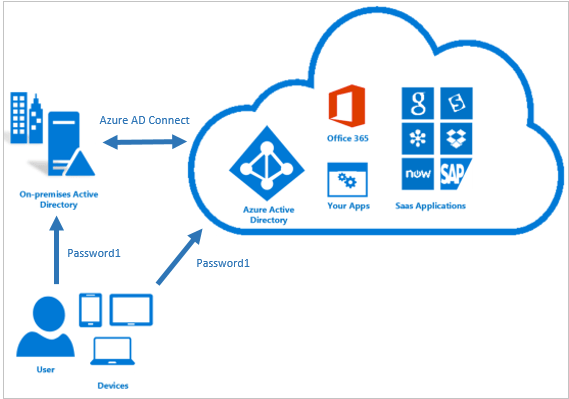
Azure Hybrid identity requires both Azure AD and Active Directory on-premises. To achieve Hybrid Identity with Azure AD, one of three authentication methods can be used:
Password hash Synchronization (PHS)
Pass-through authentication (PTA)
Federated (AD FS)
These authentication methods also provide single-sign on (SSO) capabilities which allows to automatically sign in to apps on corporate devices which are connected to your corporate network
Password Hash Synchronization can be configured (as with all three methods) using Azure AD connect utility. Azure AD connect synchronizes a hash, of the hash, of a users password from an on-premises Active Directory instance to a cloud-based Azure AD instance.
Active Directory on premises stores password in the form of a hash value representation, of the actual user password. To Synchronize your password, Azure AD connect sync extracts your password hash from the on-premises Active Directory instance. Extra security processing is applied to the password hash before it is synchronized to the Azure Active Directory authentication service. Passwords are synchronized on a per-user basis and in chronological order.
Pass-through authentication allows users to sign in to both on-premises and cloud-based applications using the same password. This feature is an alternative to Password Hash Synchronization , which provide the same benefit of cloud authentication. You can combine pass-through authentication with Single-sign on features so when users are accessing applications on their corporate machines inside the network they do not need to type in their passwords.
Federated (AD FS) is a collection of domains that have established a trust. The level of trust may vary however, but typically includes authentication and almost always includes authorization. You can federate your on-premises environment with azure AD and use this federation for authentication and authorization. This sign-in method ensures that all users authentication occurs on-premises. This method allows administrators to implement more rigorous levels of access control. There is much more to Federation but that is out of the scope of this blog post!
These three different methods of Hybrid authentication all have various scenarios which they support. Password Hash Synchronization is ideal for if you have an on-premises Infrastructure but have recently started your journey into Microsoft 365 with a few services like Exchange Online and SharePoint Online. Password Hash Synchronization will allow users to have a single password and also have single-sign on when on the corporate network.
Pass-through authentication is ideal for businesses wanting to enforce their on-premises Active Directory security and password policies into the Cloud identity.
Active Directory Federation can provide additional advanced authentication required for smart-card based authentication or third-party MFA.
Password Hash Pros:
Cloud scale/resilience since this all native Azure AD with no other reliance during authentication
Provides breach replay protection and reports of leaked credentials since the stored hash can be used t compare against credentials found on the dark web
Password Hash Cons:
If the Active Directory Account has been locked, restricted hours set or password expired it will not impact the ability to logon via azure AD
Pass-through authentication (PTA) Pros:
This is lighter than using federation and establishes an inbound 443 connection to Azure AD not requirement any inbound port exceptions
Any Active Directory account restrictions like hours, account lockout, password expired would be enforced
Pass-through authentication (PTA) Cons:
Legacy authentication (Pre 2013 Office clients) may not work with PTA
Federation Pros:
Supports 3rd party MFA and custom policies/claims rules
Certification based authentication
Federation Cons:
Large amount of Infrastructure required
Firewall exceptions needed with the ADFS Proxy
Can limit scale/availability
You can find a two part video series below where I cover Hybrid AD including a demo of Azure AD connect below:
Azure Active Directory Domain Services
Azure Active Directory Domain Services (Azure AD DS for short) provides managed domain services such as:
Domain Join
Group Policy
Lightweight directory access Protocol (LDAP)
Kerboros/NTLM authentication
You use these domain services without the need to headaches of having to manage, deploy and patch a domain controller in the cloud. Azure AD DS integrates with your existing AD tenant which makes it possible for users to sign in using their existing credentials. You can also use existing groups, and users accounts to secure access to resources which provides a smoother ‘lift-and-shift’ of on-premises resources to Azure.
Azure AD DS replicates identity information from Azure AD, so works with Azure AD tenants that are cloud-only, or synchronized with an on-premises Active Directory Domain Services (AD DS) environment. The same set of Azure AD DS features exist for both environments.
Azure AD DS offers alternatives to the need to create a VPN connection back to an on-premises AD DS environment or run and manage VMs in Azure to provide identity services. The following feature of Azure AD DS simplify deployment and management operations:
Simplified Deployment experience: Azure AD DS is enabled for your Azure AD tenant using a single wizard
Integrated with Azure AD: User accounts, group membership and credentials are automatically available from your Azure AD tenant.
NTLM and Kerboros Authentication: With support for NTLM and Kerboros authentication, you can deploy applications that rely on Windows-integrated authentication
Much like Azure AD, Azure AD DS can be used in a Hybrid environment to include integration with on-premises applications. Below is a video that goes into much more detail along with demo on Azure AD Domain Services!
I hope you enjoyed this blog! Keep an eye out on Twitter for #AzureSpringClean and stay tuned for much more amazing content this month!
For those who are new to my blog welcome, and to those returning a big thanks! It has been a while since I did a more technical blog so hopefully you will enjoy this one!
Today’s post is based on a recent experience I had which involved a customer who are fully SaaS Microsoft Cloud (Office 365, SharePoint Online, Azure AD and Intune for MDM). They had a requirement where they wanted to use an on-premises Windows based file share but wanted to utilize their existing Azure AD cloud only accounts to set permissions to the folder structure, as you do when you have an on-premises Active Directory Domain.
The Windows Server was a 2016 Virtual Machine hosted in Azure (IaaS), however it was not part of any domain as Azure AD does not allow you to ‘add devices to the domain’ but enroll them, which was not going to help in this scenario.
When investigating this I thought the best way to implement this was going to be an ‘Azure Files’ share https://docs.microsoft.com/en-us/azure/storage/files/storage-files-introduction. Azure Files offers fully managed file shares in the cloud that are accessible via the industry standard Server Message Block (SMB) protocol and can be mounted to an on-premises Windows server as a file share. However this still did not solve the permissions side of my issue, as in its default state you cannot assign Azure AD permissions to an Azure Files share.
The solution…implement Azure Active Directory Domain Services into the tenant. This would then sync with Azure AD, and I could then add the Windows Server 2016 to the ‘Domain’ in the traditional way you would if on-premises.
Difference between Azure AD and Azure AD Domain Services: The traditional Windows share supports authentication on a ‘managed domain’ which is not what Azure AD is. Azure AD does not generate or store password hashes in the format that is required for NTLM or kerberos authentication, and this is where Azure AD Domain Services comes into the picture, as this stores password hashes in the same way an on premises Active Directory domain controller would.
Azure Active Directory Domain Services was very easy to setup but first required an Azure subscription within the IaaS (Infrastructure as a Service) part of Azure where as Azure AD and Office 365 sit on the SaaS (software as a Service) part of Microsoft Cloud. I followed this guide when configuring Azure AD DS: https://docs.microsoft.com/en-us/azure/active-directory-domain-services/tutorial-create-instance. The customer already had an existing Azure AD tenant, so I was able to configure the Azure AD DS instance to the same default domain.
I found the configuration the easy part of this solution. The final part however required user input, which was to change there login passwords. A cloud-only user account is an account that was created in your Azure AD directory using either the Azure portal or Azure AD PowerShell cmdlets.
For cloud-only user accounts, users must change their passwords before they can use Azure AD DS. This password change process causes the password hashes for Kerberos and NTLM authentication to be generated and stored in Azure AD. You can either expire the passwords for all users in the tenant who need to use Azure AD DS, which forces a password change on next sign-in, or instruct them to manually change their passwords
Once this task was completed, I was able to add the Sever to the new AD DS domain as it sat within the same network (vnet) sub-net as the Azure AD DS instance and assign permissions to the Azure AD accounts to ensure the same security permissions that were in SharePoint Online were replicated to the Windows based file share! You can utilize an on-premises virtual machine, but this would require a Site-to-site VPN between your on-premises infrastructure and Azure to allow the virtual machine to communicate with the Azure AD DS instance.
From a cost perspective, Azure Active Directory Domain Services is £80 for up to 2500 identity objects which includes user accounts, groups and computers so its probably more cost effective to provision this than a VM Domain Controller in Azure as when you add the monthly VM cost along with licenses it can rack up.
Once the Identity Management and VM stage is completed, its time to provision and configure the Azure Files. Creating the Azure File share is straightforward enough, but step by step instructions can be followed here: https://docs.microsoft.com/en-us/azure/storage/files/storage-how-to-create-file-share . Once this has been created you need go into the configuration under settings and enable ‘Azure Active Directory Domain Services’ under the ‘Identity-based access for file shares’ section.
Now you need to give the relevant permissions to a user or group the necessary permissions at the share level. The Azure built-in groups for granting share level permissions are:
Storage File Data SMB Share Reader allows read access in Azure Storage file shares over SMB.
Storage File Data SMB Share Contributor allows read, write, and delete access in Azure Storage file shares over SMB.
Storage File Data SMB Share Elevated Contributor allows read, write, delete and modify NTFS permissions in Azure Storage file shares over SMB.
You can then mount the file share onto the Windows VM and assign the standard NTFS permissions via explorer as you would in an on-premises environment.
That concludes this post, I hope you enjoyed it and I would love to know what you thought so please feel free to leave a comment in the comments section or tweet me. Until next time, ‘IamITGeek’ over and out!






 IamITgeek - aka Shabaz Darr