Microsoft Endpoint Analytics Overview — August 23, 2021

Microsoft Endpoint Analytics Overview

Salaam, Namaste, Ola and Hello!

It has been a while since I did a blog due to focusing on YouTube content so I had a small list of topics I wanted to write about whilst I have a bit of a break! The first topic is Endpoint Analytics and this is a service I recently demoed for a client who was looking for a way to monitor their existing EUC estate that was using Microsoft Endpoint Manager to manage devices.

In this blog I will coer the following topics?

  • What is Endpoint Analytics?
  • Requirements
  • Features
  • What benefits does it give organizations?
  • Video Demo of the service

What is Endpoint Analytics?

Microsoft Endpoint Analytics is the monitoring service used by Microsoft Endpoint Manager which enables organizations to obtain granular and detailed data on their Windows 10 EUC estate. It is also part of the Microsoft Productivity score, (https://docs.microsoft.com/en-us/microsoft-365/admin/productivity/productivity-score?view=o365-worldwide) which provides metrics, insights and recommended actions you can take to utilize Microsoft 365 more efficiently.

The insights you obtain from the reports in Endpoint Analytics allow administrators to understand how the users in the business are working as well as the how Windows 10 is behaving. This in turn enables you to understand information on the quality of the experience the business is giving to its end users without getting direct feedback from the users themselves.

Endpoint Analytics focuses on the following main features that we will discuss later in this post:

  • Startup Performance
  • Proactive remediations
  • Recommended Software
  • Application Reliability (Preview)
  • Work from Anywhere (Preview)

At the time of this blog, both ‘Application Reliability’ and ‘Work from Anywhere’ are in preview.

Requirements

There are prerequisite requirements that need to be met from a licensing perspective, when enrolling devices via Intune and via Configuration Manager, proactive remediation scripting requirements, and permission requirements.

  • Licensing Requirements: You require a valid license for devices that are enrolled into Endpoint Analytics which is essentially anything that has an Intune subscription. These include Microsoft 365 Business Premium, Microsoft 365 E3 & E5. For Proactive remediation’s, any of the following licenses (or any subscription that includes them) is required: Windows 10 Enterprise E3 or E5 (which are included in Microsoft F3, E3, or E5), Windows 10 Education A3 or A5 (which is included in Microsoft 365 A3 or A5) and Windows 10 Virtual Desktop Access (VDA) per users.
  • Requirements when enrolling devices via Intune: Windows 10 Pro, Pro education, Enterprise or Education are only supported and it must be version 1903 or later. The Windows 10 device has to be either Azure AD Joined or Hybrid AD joined. You need to ensure you have clear connectivity to the Microsoft public cloud and finally Intune Service Administrator role is required to start information gathering (but we will go into more detail around permissions shortly)
  • Proactive Remediation Scripting Requirements: To start with, devices must either be Azure AD joined or hybrid AD joined meet the following criteria: Be managed by Intune and have either Windows 10 Enterprise, Pro, or Education, or be co-managed running Windows 10 version 1093 or later.
  • Permission Requirements: For Endpoint Analytics permissions the following is required: An appropriate role under the Endpoint Analytics, Organization or School Administrator categories. Read permission under the Help Desk Operator, or Endpoint Security Manager Intune roles and finally Reports Reader Azure AD role (https://docs.microsoft.com/en-us/azure/active-directory/roles/permissions-reference#reports-reader). To utilize Proactive Remediation’s you need to grant the appropriate role that comes under the Device Configurations category.

A few more final requirements you need to be aware of is making sure that if you do any type of proxy in between your devices and Endpoint Analytics that you ensure the following URLs are accessible:

There also needs to be a minimum of 10 x Windows 10 devices enrolled into Intune (Azure AD joined or Co-managed/Hybrid joined) in your tenant before Endpoint Analytics will start to collect data, and it will take up to 72 hours (from experience) for the tenant to report on what it has found.

Features

As mentioned earlier in the post has 5 main features that we will now discuss in more detail –

Startup Performance: This section of Endpoint Analytics is broken down into the following areas:

  • Startup Score: This is a weighted average of the core boot score and core sign-in score. In this section the core boot phase includes group policy processing (computer GPOs) and the time it takes to get to the sign-in screen. The core sign-in phase includes group policy processing (user GPOs), the average time between sign-in and when the desktop renders and the average time between when the desktop renders and when CPU usage falls below 50%.
  • Model Performance: This section shows a comparison of startup and restart times for all the different device make and models in your Microsoft 365 tenant. You will only see device models that have at least 10 devices of the same type associated with your tenant (for example you need at least 10 Microsoft Surface Pro devices before it will show in this tab)
  • Device Performance: This section allows you to have an overview of all device that are enrolled into your tenant. You can click on an individual device to then dig deeper and get further insights into its behavior.

Proactive Remediation’s: In this section you have the ability to create and run script packages that will proactively fix the top support issues in the tenant. By default you have two scripts in this section – Restart stopped Office C2R svc and Update stale Group policies. You can the status of the script as well as the number of device that had issues found by the script and devices where no issues were found by the script.

Recommended software: In this section you can review the ‘Software adoption score’ for your tenant. The score is made up of 4 categories:

  • Windows 10: This is the percentage of devices that are running Windows 10
  • Cloud identity: This metric is the percentage of devices that are registered with Azure AD
  • Cloud Management: This metric is the percentage of devices that are enrolled into Intune
  • Windows Autopilot: this shows the percentage of devices that are enrolled using Autopilot.

Application Reliability: This feature is one of two which are still in preview and is broken down into three sub-sections –

  • App reliability score
  • App Performance
  • Model Performance

Work from anywhere: This section is also in preview and shows how prepared your tenant is to enable users to work form anywhere. It is broken down into four sub-sections:

  • Overview: This gives an overall view of your tenant and shows an average score. The average score is calculated from four areas: Windows 10, Cloud identity, Cloud Management and Cloud Provisioning.
  • Windows 10: This section shows you devices that are evaluated in the Windows 10 metric. Here you can see the device name, how the device is managed (co-managed or Intune) as well as the Windows and OS versions.
  • Cloud Identity: This section shows devices that are either hybrid Azure AD or Azure AD joined ad evaluates them with the cloud identity metric.
  • Cloud Management: This section shows devices that are managed by Configuration Manager and Intune as well as co-managed devices and evaluates them with the Cloud management metric.

What benefits does it give an organization?

Endpoint Analytics gives organizations a granular view on how its EUC Windows 10 estate is performing which in turn give them insight into what the user experience is. It gives you access to information about login times and performance without having to look through millions of events which can be hugely time consuming.

This service allows organizations to test how windows updates will affect pilot groups and mitigate risk to users and Windows 10 devices. You can proactively fix potential issues before they occur and quickly report on trends to predict problems before they occur.

The main aim of the Endpoint Analytics service is to improve productivity or users and minimize IT admin overhead. It does this by enabling organization’s to have greater insights into the end user experience and Windows 10 device performance. This in-turn enables them to improve end-user experience with the proactive support approach I mentioned earlier.

Demo Video

The following video is a short walk-through the Microsoft Endpoint Analytics which will show all the features we have discussed in more detail.

I hope you enjoyed this blog and video and that you find it useful. Please feel free to comment on the blog or video as feedback and questions are always appreciated. Do not forget to subscribe to my YouTube channel – https://youtube.com/iamitgeek


Backup & Recovery of Microsoft 365 with Veeam (SaaS) — April 26, 2021

Backup & Recovery of Microsoft 365 with Veeam (SaaS)

Salaam, Namaste, Ola and Hello!

This blog post is based on a video I did a few weeks back which you can find below incase you prefer video content. In 2021 I am going to make a more conscious effort to vlog and blog about 3rd party vendors like VMware, NetApp, and Veeam and how they integrate with Microsoft Cloud services. The first series I have started this year is all around Veeam integration with Microsoft Cloud and you can catch my Introduction video below:

This specific blog will focus on ‘Backup & Recovery of Microsoft 365 with Veeam SaaS Workloads’ and I will discuss the following areas:

  • Veeam Backup for Microsoft 365 Overview
  • Features
  • Requirements

Veeam Backup for Microsoft 365 Overview

This specific Veeam service is focused around backing up Microsoft SaaS workloads including: Exchange Online, SharePoint Online, OneDrive and Microsoft Teams. It allows you to uniquely back up your data weekly, daily or as often as every five minutes if you wish to do so.

You can then store these backups in the location of your choice, including on-premises, in a hyperscale public cloud (Azure Storage or AWS Storage) or with a local service provider. The quick search and granular recovery of individual objects, including Microsoft Teams data – allows organisation’s to mitigate risk and allow a better service to its users so they can get their data back quickly.

Without an easily accessible copy of our data, retrieving emails for regulatory or compliance reasons can be costly, time-consuming and a major disruption to any business. When using Veeam Backup for Microsoft 365, you can leverage the familiar advanced search capabilities, flexible recovery and export options to perform eDiscovery on Microsoft 365 data just as easily as you would with a traditional on-premises data backup.

Veeam Backup for Microsoft 365 – Features

This service has some cool features, including a lot that you already find with other Veeam services, but also includes:

Multiple Deployment options:

  • On-premises deployment: For customers who want to have a terrestrial backup copy of Microsoft 365 data, an  on-premises deployment is the best option because it has the ability to scale-out from simple to advanced  installations. This kind of deployment provides the flexibility required by an organization that uses Microsoft 365 hybrid deployments where the protected data resides within any combination of online and on-premises Microsoft Exchange, SharePoint and OneDrive for Business infrastructures. 
  • Public Cloud Deployments: For customers who have an existing footprint in the public cloud (Azure or AWS) or for those who want to host the Infrastructure in a separate Data Centre, a deployment can operate form any public cloud and provide a complete cloud-agnostic approach. Azure Marketplace requires the customer to enter the details of the Microsoft 365 tenant you want to backup, and in general, data can be directly stored into Azure Managed disks. As of Veeam Backup for Microsoft 365 v4, Blob storage can also be achieved through ‘extended backup repositories’ which uses Microsoft Storage offerings.
  • Service Providers for a single-tenant (Exclusive mode): Veeam Cloud & Service Providers (VCSP) may offer the option to access a dedicated Veeam Backup for M365 Infrastructure that is exclusive to the clients single tenant. In this configuration, the single tenant allows the service provider to access, backup and restore content on their behalf and the customer typically uses the service provider infrastructure to protect their Microsoft 365 data and the assigned storage from the service provider as a repository for their own data. If the customer has a hybrid configuration of Microsoft Exchange and SharePoint to protect, it is required that the customer provides the FQDN of the respective on-premises Exchange and SharePoint servers to the service provider and to allow connectivity to these servers from their side. To a certain degree, the service provider for single-tenant and on-premises deployment are very similar.
  • Service Providers for Multi-tenant (Shared mode): VCSP’s can host and integrate the Veeam server deployments with existing Veeam Cloud Connect Infrastructure. In this scenario, a VCSP can use a single backup server deployment in multi-tenant mode, which means all backup data and repositories are separated and the customers can use Veeam Cloud Connect gateways to securely access and recover content. In this case, the customer has no control over the backup server which is stored on the service provider side. Customers can use Veeam Explorer for Microsoft Exchange, SharePoint and OneDrive for Business in their in-premises environment to restore data form backup stored in the service provider hosted storage. With this configuration, the service provider has visibility into all configured Microsoft 365 tenants and single tenants have no visibility into other tenant instances that share the same platform. Tenants can only access their own data from the backup jobs that the service provider has created for them.

As well as these deployment options, Veeam backup for Microsoft 365 can also backup all Exchange online objects like mail items, calendar items, contacts, notes and tasks. you can then restore directly to the mailbox, to a PST or to a different mailbox. You can also use Veeam Explorer for Exchange to browse mailboxes and recover single items. The same features are available when backing up SharePoint Online, OneDrive for Business and Microsoft Teams.

Requirements

There are several requirements around Microsoft Exchange, SharePoint, the Veeam backup server and the proxy server:

  • Microsoft Exchange Org requirements: You need to ensure you have Microsoft Exchange online or Microsoft Exchange Server 2019, 2016 or 2013 (on-premises).
  • Microsoft SharePoint Org requirements: You need to ensure you have SharePoint Online or SharePoint Server 2019 or 2016.
  • Veeam Backup for M365 Server: There are hardware, OS and Software requirements which you can see in the table below:
SpecificationRequirement
HardwareThe following hardware is required:
•CPU: any modern multi-core x64 processor, 4 cores minimum.
•Memory: 8 GB RAM minimum. Additional RAM and CPU resources improve backup, restore and search performance.
•Veeam Backup for Microsoft Office 365 also requires a minimum size of 8GB of RAM for VMs with dynamic memory allocation.
•Disk Space: 500 MB for product installation and additional free space for the configuration database (depending on the amount of organizations, jobs and sessions) and product logs.
OSOnly 64-bit version of the following operating systems are supported:
•Microsoft Windows Server 2019, Microsoft Windows Server 2016, Microsoft Windows Server 2012 R2, Microsoft Windows Server 2012, Microsoft Windows Server 2008 R2 SP1, Microsoft Windows 10, Microsoft Windows 8.x, Microsoft Windows 7 SP1
SoftwareThe following software is required: •Microsoft .NET Framework 4.7.2 or higher.
•Windows C Runtime and Update (UCRT) in Windows.
•To use PowerShell cmdlets for backup and/or restore, Windows PowerShell 2.0 or higher is required. When using Windows 2012 or 2012 R2, Windows PowerShell 2.0 Engine must be installed regardless of the current PowerShell version.
Veeam backup for Microsoft 365 requirements
  • Veeam Backup Proxy Server: There are hardware, OS and software requirements which you an see in the table below:
SpecificationRequirement
HardwareThe following hardware is required:
•CPU: any modern multi-core x64 processor, 4 cores minimum.
•Memory: 8 GB RAM minimum. Additional RAM and CPU resources improve backup, restore and search performance.
•Veeam Backup for Microsoft Office 365 also requires a minimum size of 8GB of RAM for VMs with dynamic memory allocation.
•Disk Space: 300 MB for product installation and additional free space for the configuration database (depending on the amount of organizations, jobs and sessions) and backup proxy logs.
OSOnly 64-bit version of the following operating systems are supported:
•Microsoft Windows Server 2019, Microsoft Windows Server 2016, Microsoft Windows Server 2012 R2, Microsoft Windows Server 2012, Microsoft Windows Server 2008 R2 SP1, Microsoft Windows 10, Microsoft Windows 8.x, Microsoft Windows 7 SP1 Proxy Servers can be deployed to the following core editions:
•Microsoft Windows Server 2019, Microsoft Windows Server 2016 LTSC, 1709, Microsoft Windows Server 2012 R2
SoftwareThe following software is required: •Microsoft .NET Framework 4.7.2 or higher.
•Windows C Runtime and Update (UCRT) in Windows For a machine used as a workgroup backup proxy, the following settings are required:
•The Remote registry service must run on the target machine.  The service start-up type must be set to Automatic •Windows Firewall must be turned off on the target machine
Veeam Backup Proxy Server Requirements

Finally you can find a video of my doing a demo of the Veeam Backup for Microsoft 365 in the video below:

I hope you enjoyed this blog and find it useful. If you have any questions please leave me a comment or hit me up on my twitter handle which is @shabazdarr.

Using MS Teams with on-premises Exchange — March 9, 2020

Using MS Teams with on-premises Exchange

Salaam, Namaste, Ola and Hello!

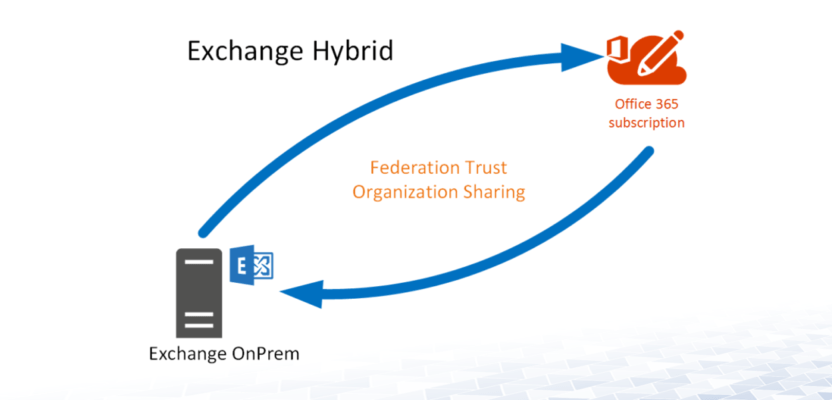
I have been working with a lot of customers in recent months who have a large on premises footprint but want to start the journey into using cloud services. In my experience, the first step tends to be migrating email services to Exchange online which gives the business the start of a new Hybrid Infrastructure.

Once users start adopting Exchange online features, one of the services that soon follow is Microsoft Teams and today I am going to detail a recent experience I had with a customer who has a massive Virtual Environment which includes a multi server Exchange on premises Org. They were looking to start their Cloud/Hybrid journey, however rather than Exchange Online, they wanted to look at integrating Microsoft Teams

Microsoft Teams is a cloud native app so the full feature set is supported when you have an Exchange Online mailbox. The scenario I had was an existing Exchange 2013 on premises org on the latest CU with no Microsoft 365 tenant and a customer wanting to look at adopting Teams for meeting rooms and collaboration.

Understand pre-requisites. We know what the end game is: Utilise Microsoft Teams and integrate this in a Hybrid environment. Knowing this, the next step is to document the pre-requisites which will allow us to get to that end goal, as this then helps understand our step by step process. The following are pre-requisites for integrating and using Microsoft Teams functionality in a hybrid environment:

  • Exchange 2016 Exchange Server (with CU 15 as a minimum)
  • Hybrid Exchange configured
  • Microsoft 365 tenant with relevant licenses
  • Hybrid Identity (identity object in Active Directory on premises and Azure AD)

As I mentioned earlier, the existing Exchange Org was 2013 so we needed to create a new Exchange 2016 Exchange Server into the existing Org and ensure it had CU 15 at least. At this stage the plan was to only migrate the internal IT Team to the new server to allow testing before rolling out Teams to the wider user groups. For full instructions and understanding on how to install Exchange 2016 I would recommend the following article: https://practical365.com/exchange-server/installing-exchange-server-2016/

Once we had the Exchange 2016 server integrated into the existing Exchange Org we needed to create and configure the Microsoft 365 tenant. Working for a MSP came in handy as we were able to provision this via the CSP platform and get tenant up and working fairly quickly. For full instructions and understanding on how to configure a Microsoft 365 tenant I would recommend the following article: https://docs.microsoft.com/en-us/microsoft-365/education/deploy/create-your-office-365-tenant . It does not cover the CSP element but does explain how to configure the.

We now have a working Microsoft 365 tenant and an on premises Exchange Org with a 2016 CU 15 server. We now needed to create the Hybrid configuration which in this case is both Identity and Exchange Hybrid.

To create the identity Hybrid we installed and configured Azure AD connect on one of the existing on premises domain controllers. I would recommend the following article: https://docs.microsoft.com/en-us/office365/enterprise/set-up-directory-synchronization . In this scenario we wanted ‘Password Hash Synchronisation and to enable Exchange Hybrid option in the utility.

Once the relevant identities were synchronising between Active Directory on premises and Azure AD we could install and configure the Hybrid Exchange wizard. This needed to be installed on the Exchange 2016 server and also required some public DNS record creations. I would recommend the following article: https://docs.microsoft.com/en-us/exchange/hybrid-deployment/deploy-hybrid. One of the important requirements of using Teams in a Hybrid environment is ensuring OAuth authentication is configured and working, and with Exchange 2016 the Hybrid Exchange wizard automatically configures this.

Once the above configuration was completed and in place we were able to deploy Microsoft Teams to a device and login with Office 365 credentials (synchronised with on premises Active Directory). This then allowed the end user to use the Teams functionality like Calendar, meeting room licenses and other collaboration available in the app. The one caveat to this is that the users mailbox needed to be on the Exchange 2016 database to make use of Microsoft Teams fully.

I hope you have enjoyed this short blog. The main purpose of it is to just share a recent experience I have had in the hope if you come across a similar scenario that it might help you! Please feel free to leave a comment, but until next time IamITGeek over and out!!