Using MS Teams with on-premises Exchange — March 9, 2020

Using MS Teams with on-premises Exchange

Salaam, Namaste, Ola and Hello!

I have been working with a lot of customers in recent months who have a large on premises footprint but want to start the journey into using cloud services. In my experience, the first step tends to be migrating email services to Exchange online which gives the business the start of a new Hybrid Infrastructure.

Once users start adopting Exchange online features, one of the services that soon follow is Microsoft Teams and today I am going to detail a recent experience I had with a customer who has a massive Virtual Environment which includes a multi server Exchange on premises Org. They were looking to start their Cloud/Hybrid journey, however rather than Exchange Online, they wanted to look at integrating Microsoft Teams
Microsoft Teams is a cloud native app so the full feature set is supported when you have an Exchange Online mailbox. The scenario I had was an existing Exchange 2013 on premises org on the latest CU with no Microsoft 365 tenant and a customer wanting to look at adopting Teams for meeting rooms and collaboration.

Understand pre-requisites. We know what the end game is: Utilise Microsoft Teams and integrate this in a Hybrid environment. Knowing this, the next step is to document the pre-requisites which will allow us to get to that end goal, as this then helps understand our step by step process. The following are pre-requisites for integrating and using Microsoft Teams functionality in a hybrid environment:

  • Exchange 2016 Exchange Server (with CU 15 as a minimum)
  • Hybrid Exchange configured
  • Microsoft 365 tenant with relevant licenses
  • Hybrid Identity (identity object in Active Directory on premises and Azure AD)

As I mentioned earlier, the existing Exchange Org was 2013 so we needed to create a new Exchange 2016 Exchange Server into the existing Org and ensure it had CU 15 at least. At this stage the plan was to only migrate the internal IT Team to the new server to allow testing before rolling out Teams to the wider user groups. For full instructions and understanding on how to install Exchange 2016 I would recommend the following article: https://practical365.com/exchange-server/installing-exchange-server-2016/

Once we had the Exchange 2016 server integrated into the existing Exchange Org we needed to create and configure the Microsoft 365 tenant. Working for a MSP came in handy as we were able to provision this via the CSP platform and get tenant up and working fairly quickly. For full instructions and understanding on how to configure a Microsoft 365 tenant I would recommend the following article: https://docs.microsoft.com/en-us/microsoft-365/education/deploy/create-your-office-365-tenant . It does not cover the CSP element but does explain how to configure the.

We now have a working Microsoft 365 tenant and an on premises Exchange Org with a 2016 CU 15 server. We now needed to create the Hybrid configuration which in this case is both Identity and Exchange Hybrid.
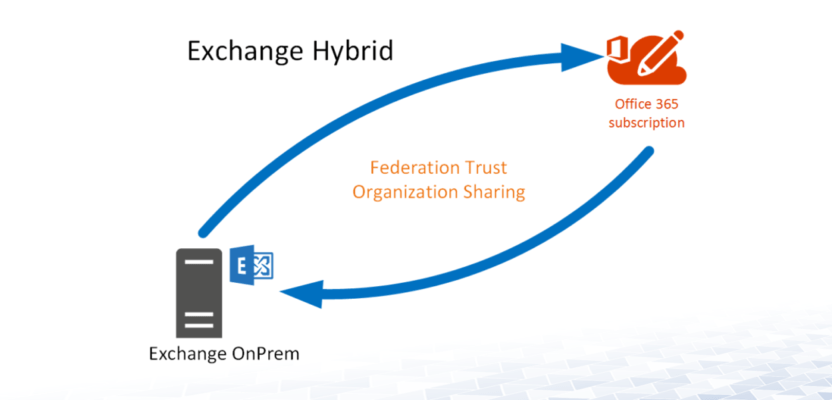
To create the identity Hybrid we installed and configured Azure AD connect on one of the existing on premises domain controllers. I would recommend the following article: https://docs.microsoft.com/en-us/office365/enterprise/set-up-directory-synchronization . In this scenario we wanted ‘Password Hash Synchronisation and to enable Exchange Hybrid option in the utility.

Once the relevant identities were synchronising between Active Directory on premises and Azure AD we could install and configure the Hybrid Exchange wizard. This needed to be installed on the Exchange 2016 server and also required some public DNS record creations. I would recommend the following article: https://docs.microsoft.com/en-us/exchange/hybrid-deployment/deploy-hybrid. One of the important requirements of using Teams in a Hybrid environment is ensuring OAuth authentication is configured and working, and with Exchange 2016 the Hybrid Exchange wizard automatically configures this.

Once the above configuration was completed and in place we were able to deploy Microsoft Teams to a device and login with Office 365 credentials (synchronised with on premises Active Directory). This then allowed the end user to use the Teams functionality like Calendar, meeting room licenses and other collaboration available in the app. The one caveat to this is that the users mailbox needed to be on the Exchange 2016 database to make use of Microsoft Teams fully.

I hope you have enjoyed this short blog. The main purpose of it is to just share a recent experience I have had in the hope if you come across a similar scenario that it might help you! Please feel free to leave a comment, but until next time IamITGeek over and out!!


Exam MD-101: Managing Modern Desktops study guide and exam prep — February 3, 2020

Exam MD-101: Managing Modern Desktops study guide and exam prep

Salaam, Namaste, Ola and Hello!

Back in August I blogged about the MD-100 exam, the resources I used and how I prepared for this ( https://iamitgeek.com/2019/08/28/md-100-modern-desktop-associate-study-guide-exam-prep/ ). 

Last week I was successful in completing the second part of this certification, the MD-101 exam on Managing Modern Desktop and in this blog I will detail my journey, including:

  • Study Resources
  • Topics you need to cover
  • Exam Tips

For those who are not aware, the MD-101 is the second certification required for the ‘Modern Desktop Associate Administrator’ and focuses on Windows 10 deployment and management using services such as Azure Intune and SCCM (System Center Configuration Manager).

STUDY RESOURCES: To start my learning for this exam with the content on Pluralsight (https://www.pluralsight.com/). There are some great videos on here which gave me a good starting platform for my preparation. The main course series you will need to watch is “Microsoft Modern Desktop Administrator: Managing Microsoft Desktops (MD-101)” by Glenn Weadock. The course is 5 videos totaling up to 8 hours altogether which have the following headings:

  • Introduction to Microsoft Modern Desktop Administrator MD-100 and MD-101 Exams
  • Managing Microsoft Desktops: Deploying and Updating Operating Systems
  • Managing Microsoft Desktops: Policies and Profiles
  • Managing Microsoft Desktops: Managing and Protecting Devices
  • Managing Microsoft Desktops: Apps and Data

All the content is video based and I, like others I am sure needs more than just this to take in content. What i found worked really well for me was watching a video and then doing some practical content around that subject.

For example I would watch the video on ‘Managing Microsoft Desktops: Policies and Profiles’ and then login to my test Office 365 subscription and put what I just watched into practice by configuring policies and profiles, then deploying them to my test Windows 10 VMs.

I found the content was going in much better this way and I was ‘Learning by doing’ rather than watching and half of the information being forgotten.

The final resource I used for my preparation was the Microsoft OpenEDX learning resource (https://openedx.microsoft.com). I cannot speak highly enough about this resource as it blends written content with practical and test quiz questions which helps you test the skills you have learnt over the course. For the MD-101 it is split into three course:

  • MD-101.1: Deploying the Modern Desktop
  • MD-101.2: Managing Modern Desktops & Devices
  • MD-101.3: Protecting Modern Desktop & Devices

Each course has a great mixture of written, video, practical labs and a quiz at the end which I found to be a great blend for a learning resource.

TOPICS YOU NEED TO COVER: For a detail look at the skills that are measured in this exam I recommend reading https://docs.microsoft.com/en-us/learn/certifications/exams/md-101 which breaks down in detail each of the following sections:

  • Deploying and updating operating systems (15-20%)
  • Manage Policies and Profiles (35-40%)
  • Manage and protect devices (15-20%)
  • Manage Apps and data (25-30%)

EXAM TIPS: In my blog on the MD-100 I explained the over arching format with the standard multiple choice questions, scenario based questions and use case section which consisted of 7 questions. As with the MD-100 there was no lab in the MD-101 either, however I would recommend preparing as if there is a lab section just in case Microsoft decide to change it up.

The exam was 42 questions in total with the big use case to start (7 questions in total). Now I have done a few of the new format exams, I have actually found a great way to tackle these types of questions. What I found was that their is a lot of information to take in with these use cases and it can take up to 5 minutes plus to read through everything. What I did with both the MD-100 and MD-101 exams was is that I did not read the use case to begin with, and instead read the question first and then referred to the specific part of the use case I needed to read to be able to best answer the question.

I found this way of tackling the question saved a lot of time but also didn’t clog up my mind with a lot of information i didn’t need for the questions. As I mentioned there were 7 questions in this section, so I only needed 7 bits of information! Please note this is just my own experience with the exams in this format and it might not work for you.

Hope you find this helpful, if you would like any more information feel free to tweet me @shabazdarr or ask a question in the comments section below! I am planning on doing the AZ-500 exam next so will follow that up with another post!